PIDTuner
PIDTuner is an in-house, easy to use PID tuning suite set up directly into Shuffleboard. No longer will programmers have to slave over PID tuning for a long time. Now, that crucial time can be spent instead pre-programming other subsystems instead of these horrible feedback loops.
PID Controllers refer to Proportional, Integral and Derivative controllers. In short, think of a PID Controller as a black box. The black box receives two values: a setpoint, where want to be at, and a current point, where we are at currently at. The PID Controller then uses SUPPLIED constants to do complex calculus to give you a value. That value is usually what we feed back into the "set" method, or what sets the rpm, the voltage, etc. The hard part is finding those constants, of which there are three: P, I and D. This tuner will help you explore PID and tune motors very easily.
PIDTuner gives you the ability to tune any Falcon motor's PID settings. These values can then be documented and then forwarded into actual values that are constantly applied to that motor in play. Within the suite, there is also the ability to activate a benchmark mode, giving the tuners the ability to see if their change was meaningful or not.
First, the hard part: Getting the utils directory. Hopefully you already have it, but if not, just download a copy of the official 4645 "init-repo" and use that. After that, it's simple. Here's a declaration example:

Now, you'll want to build and push code to the robot so you can control your motor. That should automatically activate Shuffleboard, but if it doesn't you can manually open it by accessing the windows start menu and typing Shuffleboard. As you open that, you should see a new tab at the top which has the name of what you gave it in code. Click on the tab. All of your tools should be in order.
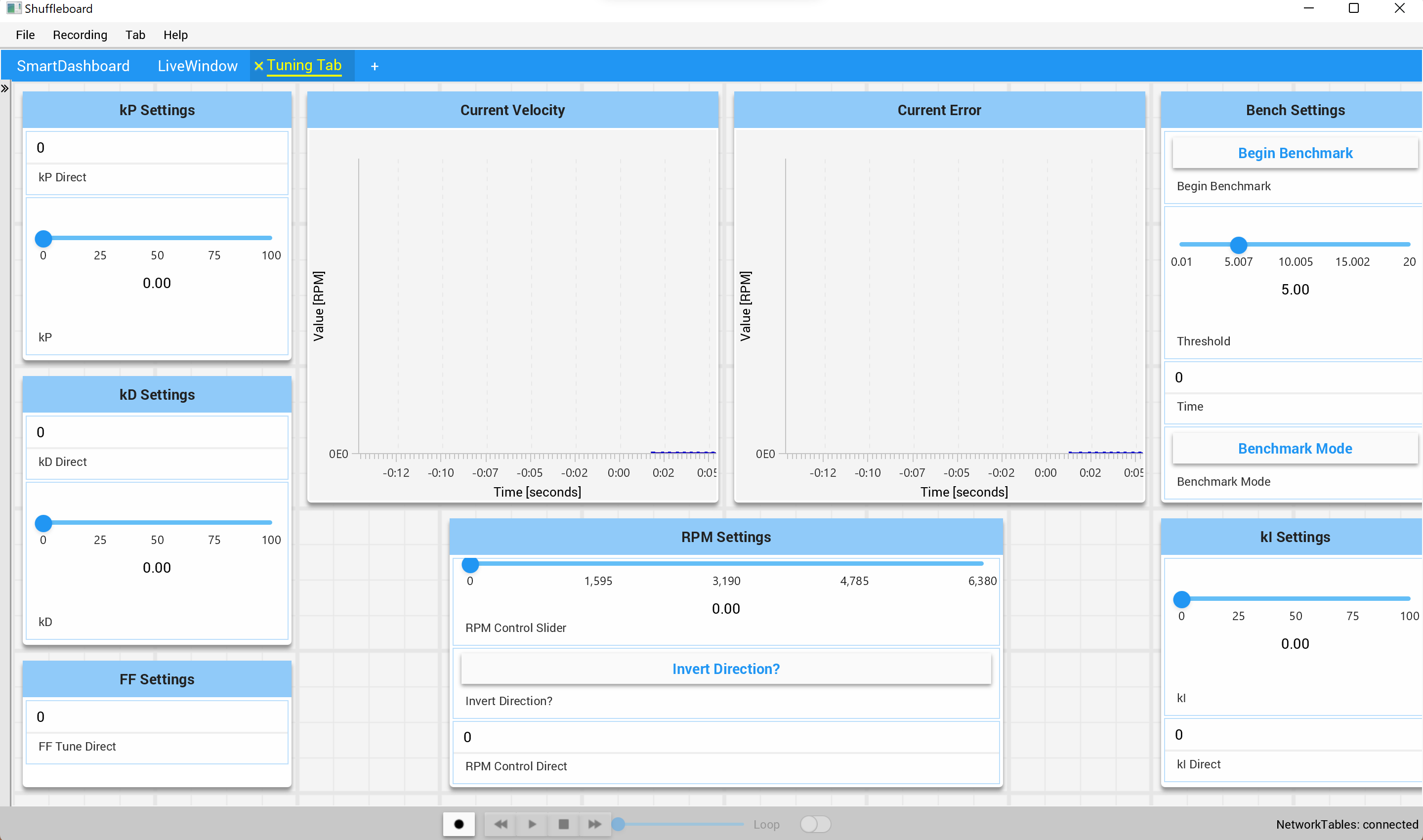
This is the automatic preset for the PID Tuner. Each section is labeled. For P, D, and F values they are on the left because they are most used. You can tune these values by directly entering them into the Direct box. Alternatively, you can move the sliders for each individual value so you can find a value faster that works, and then tune more specifically with the direct. The RPM settings to the bottom-middle gives you the same options to control via slider and a direct input for more precise inputs and value-readings. The graphs show both the velocity and the current error in RPM. In the top right is the special benchmark mode which sets velocity to 0 and then uses your PID values to measure how fast it reaches a setpoint. You can use this to see how good your PID values (trust me they can get pretty fast, anything within 0.75-1.5 seconds is too long. Bottom right is kI, but you're not going to edit those very much if I am being honest.