CMPE 131 - Software Engineering 1 @ SJSU
Prof. Butt
Fall Semester 2023
Group 6
This project was developed using the XAMPP Apache distribution, but it should run on any php environment. An sql server will need to be hosted to store the database. After following the below instructions to setup on XAMPP, navigate to https://localhost on your browser to view the webpage.
If you are hosting on xampp, it is reccomended that you clone this repo into xampp/htdocs. Using git, run the following in your command line after navigating to the htdocs folder. On windows machines this can be found by defualt in C:\xampp\htdocs:
git clone https://github.com/venajustin/OnlineFoodStore
Copy OnlineFoodStore/index.php into htdocs to make the website the default page when going to http://localhost (on windows machines).
In order to access a database you will need to put a file credentials.php in htdocs as well. Set the variables to the login information for your mysql server. The values in the following sample are currently set to connect to the MySQL server hosted through XAMPP. If you are connecting to a remote database, you will need to change the $dbuser and $dbpass variables to your database login information. The $hostname variable should contain the access address for your databse.
<?php
$hostname = 'localhost:3306';
$dbuser = 'root';
$dbpass = '';
$dbname = 'onlinefoodstore';
?>database/tableinfo.sql contains sql queries to generate all of the required tables for the OnlineFoodStore site to run.
If using XAMPP to host your server, Start up the Apache and Mysql services. Click on the Admin button for MySQL. Create a new database called onlinefoodstore. In that database, under the SQL tab, paste the entirety of the tableinfo.sql file into the box and press GO. This should generate all of the needed tables in your database. The populateitems.sql file contains an sql query to add a set of example items to the database. You can run this sql to add a set of example items for testing purposes.
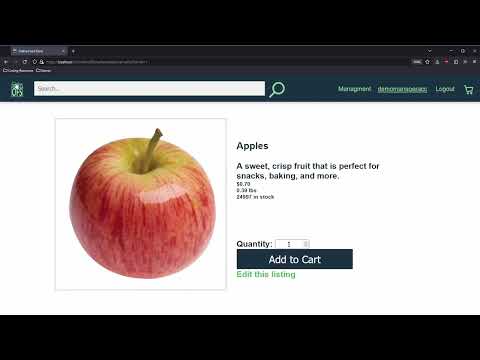
We have a video tutorial demonstrating all of the features of the site and how to use it.
The New Employee Key is by default set to group6. This can be changed by running the following sql on the database. Replace new_employee_key with the new passkey.
UPDATE global_variables
SET value="new_employee_key"
WHERE name="masterkey";