CLI tool for Spck Editor - provides remote filesystem, git, and terminal access over WebSocket.
Connect your local development environment to Spck Editor mobile app and access local files, git operations, and terminal sessions remotely.
- Website: https://spck.io
- Documentation: https://docs.spck.io/en/cli-start
- Changelog: https://docs.spck.io/en/changelog-cli
- Download: Spck Editor on Google Play | Spck Editor on App Store
- 🗂️ Remote Filesystem - Access local files from Spck Editor mobile app
- 🔄 Git Integration - Full git operations over the network connection (requires Git 2.20.0+)
- 💻 Terminal Access - Interactive terminal sessions with xterm.js
- 🌐 Browser Proxy - Preview your local server in a browser view inside Spck Editor
- 🧠 Language Server - Full LSP bridge for TypeScript, JavaScript, Python, HTML, CSS, and SCSS with project-wide intelligence
- 🔍 Fast Search - Optimized file search with automatic ripgrep detection (100x faster when installed)
- 🤖 Local AI Agents (ACP) - Bridge Spck Editor to locally installed agent CLIs (Claude Code, Codex, Gemini CLI) via the Agent Client Protocol
- 🔒 Secure - Cryptographically signed requests with optional Firebase authentication
- Node.js: 18.0.0 or higher
- Operating System: Linux, macOS, or Windows
- Spck Editor Account: Free account (30 min/day) or Premium subscription (unlimited)
- Spck Editor Mobile App: Required for QR code connection (Android/iOS)
-
Git: 2.20.0 or higher - Required for git integration features (commit, push, pull, branch management)
- Check version:
git --version - Install:
- macOS:
brew install git(via Homebrew) - Ubuntu/Debian:
sudo apt-get install git - Windows: Download from git-scm.com
- macOS:
- Check version:
-
ripgrep: 15.0.0 or higher - Dramatically improves search performance (100x faster than default search)
- Check version:
rg --version - Install:
- macOS:
brew install ripgrep - Ubuntu/Debian:
sudo apt-get install ripgrep - Windows:
choco install ripgrep(via Chocolatey) or download from GitHub releases
- macOS:
- Note: The CLI will automatically detect and use ripgrep if available, falling back to Node.js search if not installed
- Check version:
-
AI Agent CLIs (ACP): Any one or more of the supported agent CLIs enables in-editor chat with a local AI coding agent. Each is auto-detected on startup; install only the ones you want to use.
- Claude Code (binary:
claude) — Anthropic's official CLI. Install:npm install -g @anthropic-ai/claude-code. Authenticate withclaudeonce before connecting. See Claude Code docs. - Codex (via codex-acp) (binary:
codex-acp) — community ACP wrapper around OpenAI's Codex CLI. Install:npm install -g @zed-industries/codex-acp(requires the Codex CLI itself to be authenticated separately). - Gemini CLI (binary:
gemini) — Google's official CLI with built-in ACP mode. Install:npm install -g @google/gemini-cli. Authenticate withgeminionce before connecting. See Gemini CLI repo. - Note: ACP is optional. When no agent binaries are on
PATH, Spck Editor falls back to its built-in server-routed agents.
- Claude Code (binary:
No installation required - run directly using npx:
npx spckInstall the CLI globally to use it from anywhere:
npm install -g spck
spckSee Remote Project features in action in Spck Editor:
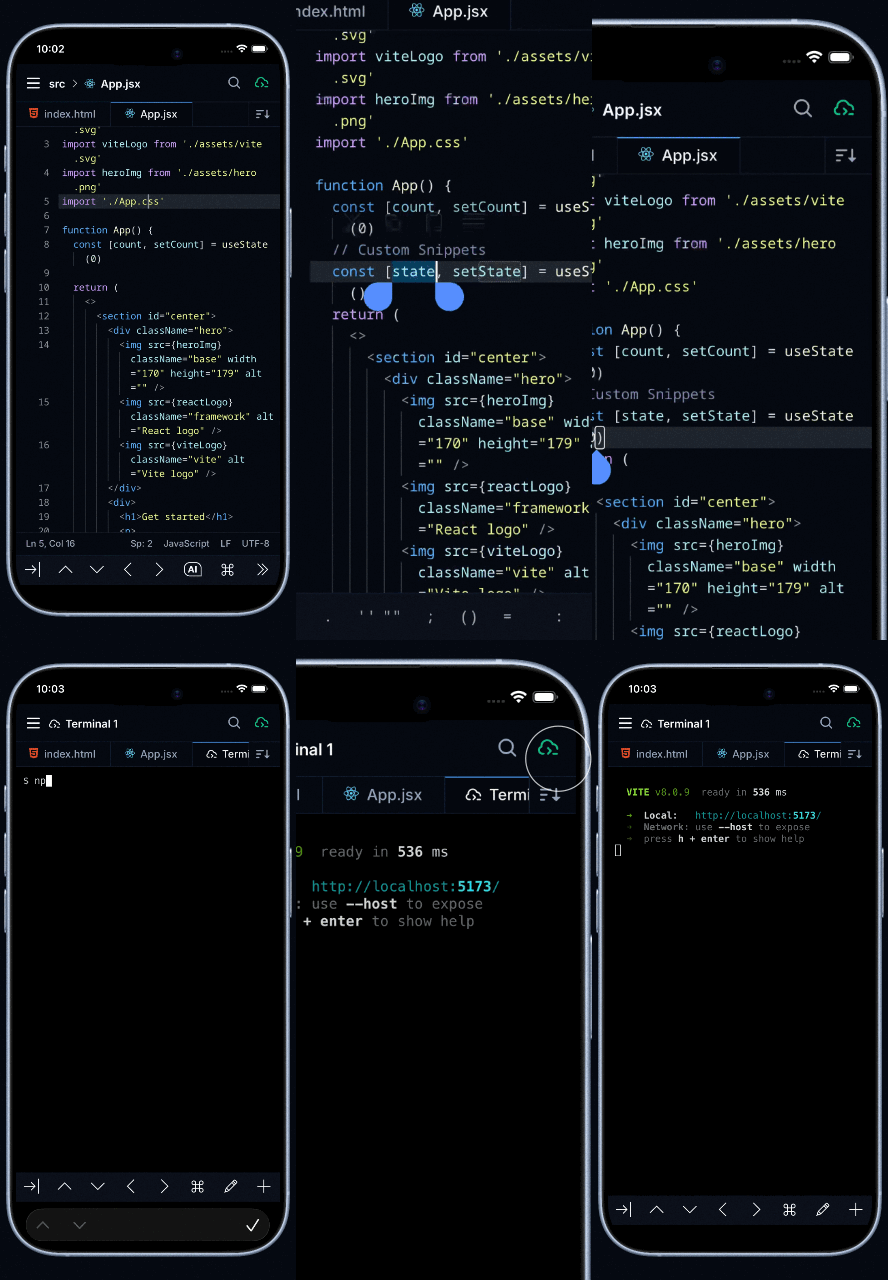
On first run, the CLI will guide you through:
- Firebase Authentication - Sign in with your Spck Editor account
- Configuration Setup - Choose root directory and settings
- Git Configuration (Advanced) - Optionally add
.spck-editor/to.gitignore
The setup wizard will:
- Detect if a
.gitignorefile exists in your project - Prompt you to automatically add
.spck-editor/to prevent committing the symlink - Create or update
.gitignorewith proper comments
To reconfigure or run the setup wizard manually:
spck --setupOnce running, the CLI displays a QR code and connection details.
IMPORTANT: The Spck Editor mobile app must be installed BEFORE scanning the QR code. The QR code contains a custom spck:// deep link that only works with the app installed.
On Android:
- Install Spck Editor from Google Play Store if not already installed
- Use your device's built-in QR scanner:
- Open the Camera app and point it at the QR code, OR
- Swipe down from the top and tap the QR code scanner in Quick Settings
- When the QR code is detected, Android will show a notification to open with Spck Editor
- Tap the notification to open Spck Editor
- The app will automatically parse the connection details and connect
On iOS:
- Install Spck Editor from the App Store if not already installed
- Use your device's built-in QR scanner:
- Open the Camera app and point it at the QR code, OR
- Open Control Center and tap the QR code scanner icon
- When the QR code is detected, iOS will show a notification to open with Spck Editor
- Tap the notification to open Spck Editor
- The app will automatically parse the connection details and connect
Note: Spck Editor does NOT have a built-in QR scanner. You must use your device's native QR scanning capability (camera or system scanner).
If the QR code doesn't work or you prefer manual entry:
- Open Spck Editor mobile app
- Tap Projects → New Project → Link Remote Server
- Enter the Client ID and Secret shown below the QR code in your terminal
- Select a Relay server, must match what is shown in the terminal.
- Tap Connect
Once connected, you can browse and edit your local files from the mobile app!
# Start the CLI with default settings
spck

# Run interactive setup wizard
spck --setup

# Show account information
spck --account

# Logout and clear credentials
spck --logout

# Show help
spck --help

# Show version
spck --version# Use custom configuration file
spck --config /path/to/config.json
spck -c /path/to/config.json
# Override root directory
spck --root /path/to/project
spck -r /path/to/projectThe configuration is stored in .spck-editor/config/spck-cli.config.json in your project directory.
Important: .spck-editor/config is a symlink to ~/.spck-editor/projects/{project_id}/, which keeps your secrets outside the project directory and prevents accidental git commits. Other files like logs and temporary data are stored locally in .spck-editor/.tmp, .spck-editor/.trash, and .spck-editor/logs.
Default Configuration:
{
  "version": 1,
  "root": "/path/to/your/project",
  "name": "My Project",
  "terminal": {
    "enabled": true,
    "maxBufferedLines": 5000,
    "maxTerminals": 10
  },
  "security": {
    "userAuthenticationEnabled": false
  },
  "filesystem": {
    "maxFileSize": "10MB",
    "watchIgnorePatterns": [
      "**/.git/**",
      "**/.spck-editor/**",
      "**/node_modules/**",
      "**/*.log",
      "**/.DS_Store",
      "**/dist/**",
      "**/build/**"
    ]
  },
  "browserProxy": {
    "enabled": true
  },
  "acp": {
    "enabled": true
  }
}browserProxy.enabled(boolean, default:true): Enable/disable the browser proxy feature. Set tofalseto prevent the mobile app from opening browser proxy sessions through the CLI.
acp.enabled(boolean, default:true): Enable/disable ACP. Whenfalse, the editor's "Local Claude Code" / agent switcher hides and the cloud (SSE) path is used instead. Disable this per-project when you don't want the editor to be able to drive a local AI coding agent on this host — the agent has indirect shell and filesystem access, so this is the per-project opt-out.- Backward-compat: configs that predate this option are loaded with
acp: { enabled: true }populated automatically and re-saved. - See Local AI Coding Agents (ACP) below for details on the agents this controls.
- Backward-compat: configs that predate this option are loaded with
terminal.enabled(boolean): Enable/disable terminal access- Default:
true
- Default:
terminal.maxBufferedLines(number): Maximum scrollback buffer lines- Default:
10000
- Default:
terminal.maxTerminals(number): Maximum concurrent terminal sessions- Default:
10
- Default:
security.userAuthenticationEnabled(boolean): Enable Firebase user authentication- Default:
false - When
true: Requires Firebase account login (adds user identity verification, adds latency (2-20s) to initial connection) - When
false: Requests still protected by secret signing key (lower latency, compatible with Spck Editor Lite) - Note: All requests are always cryptographically signed regardless of this setting
- Default:
languageServer.enabled(boolean, default:true): Master switch for all remote language servers. Set tofalseto disable the feature entirely.languageServer.typescript.enabled(boolean, default:true): Enable the TypeScript/JavaScript language server.languageServer.python.enabled(boolean, default:true): Enable the Python language server (powered by bundled Pyright — no additional installation required).
Example — disable language server entirely:
{
  "languageServer": {
    "enabled": false
  }
}
Example — disable Python only:
{
  "languageServer": {
    "enabled": true,
    "python": {
      "enabled": false
    }
  }
}filesystem.maxFileSize(string): Maximum file size for read/write operations- Default:
"10MB" - Accepts:
"5MB","50MB", etc.
- Default:
filesystem.watchIgnorePatterns(string[]): Glob patterns to ignore when watching files- Default: Ignores
node_modules,.git,dist,build
- Default: Ignores
The CLI uses a secure storage system that prevents accidentally committing secrets to git:
-
User Credentials (Global):
~/.spck-editor/.credentials.json- Contains: Firebase refresh token and user ID
- Persisted across all projects
- Stored securely in your home directory
-
Project Data (Per-Project):
~/.spck-editor/projects/{project_id}/- Contains: Configuration and connection settings for each project
- Each project gets a unique ID based on its path
- Stored securely outside your project directory
-
Project Directory:
.spck-editorin your project directory- Regular directory containing local data (
.tmp,.trash,logs) - The
configsubdirectory is a symbolic link pointing to~/.spck-editor/projects/{project_id}/ - Automatically created by the CLI
- Prevents secrets from being committed to git
- Regular directory containing local data (
Files stored in the symlinked config directory (.spck-editor/config/):
spck-cli.config.json- Project configurationconnection-settings.json- Server token, client ID, and secret signing key
Files stored locally (.spck-editor/):
.tmp/- Temporary files.trash/- Deleted fileslogs/- CLI operation logs
When Spck Editor connects to a CLI session it automatically uses the CLI's remote language server instead of the built-in client-based one. The CLI runs a full Language Server Protocol (LSP) bridge alongside your project, providing project-wide code intelligence directly in the mobile editor.
For full details see the CLI Language Server documentation.
| Language | Completions | Hover | Signatures | Diagnostics |
|---|---|---|---|---|
| TypeScript / TSX | ✓ | ✓ | ✓ | ✓ |
| JavaScript / JSX | ✓ | ✓ | ✓ | ✓ |
| Python | ✓ | ✓ | ✓ | ✓ |
| HTML | ✓ | ✓ | — | ✓ |
| CSS / SCSS / Less | ✓ | ✓ | — | ✓ |
The CLI language server has several advantages over the in-browser language server that Spck Editor uses when no CLI is connected:
| Capability | CLI Language Server | Mobile Built-in |
|---|---|---|
| Full project file access | ✓ | — |
tsconfig.json / jsconfig.json |
✓ | — |
node_modules type resolution |
✓ | — |
| Cross-file go to definition | ✓ | Limited |
| Cross-file find references | ✓ | — |
| Rename symbol | ✓ | — |
| Works offline (no CLI) | — | ✓ |
No file transmission: The CLI reads project files directly from disk. With the mobile built-in server, files must be sent to the device before they can be analyzed, adding latency and bandwidth overhead.
Full project awareness: The CLI has access to your entire project tree — every file, node_modules/, and auto-discovered tsconfig.json — so go-to-definition and find-references work across the whole codebase, not just open files.
Proper tsconfig.json handling: Path aliases, compiler options, project references, and monorepo layouts defined in tsconfig.json or jsconfig.json are respected automatically.
Persistent process: The language server stays alive for the duration of the CLI session and keeps a warm in-memory index of your project, so responses remain fast after the initial startup.
The language server is enabled by default. Control it in .spck-editor/config/spck-cli.config.json:
Disable the language server entirely:
{
  "languageServer": {
    "enabled": false
  }
}
Disable a specific language server only:
{
  "languageServer": {
    "enabled": true,
    "python": {
      "enabled": false
    }
  }
}- TypeScript / JavaScript / HTML / CSS / SCSS: Bundled with the CLI — no extra installation needed.
- Python: Bundled with the CLI via Pyright — no additional installation required.
The CLI can bridge Spck Editor to AI coding agents running on your machine using the Agent Client Protocol (ACP) — an open standard from Zed Industries for IDE ↔ agent communication. When the CLI starts, it probes your PATH for supported agent binaries and exposes any it finds to the connected Spck Editor app, which uses your local subscription/API key and runs the agent on your hardware.
| Agent | Binary | ACP launch | Install |
|---|---|---|---|
| Claude Code | claude |
claude acp |
npm install -g @anthropic-ai/claude-code |
| Codex (codex-acp) | codex-acp |
codex-acp |
npm install -g @zed-industries/codex-acp |
| Gemini CLI | gemini |
gemini --acp |
npm install -g @google/gemini-cli |
Each agent is independently optional. Install only the ones you want; the CLI will auto-detect them on startup.
On startup the CLI prints which agents it found, for example:
--- ACP Agents (local AI coding agents) ---
✅ Claude Code detected: 1.0.0 (ACP transport available)
⚪ Codex (codex-acp) not detected (binary: codex-acp)
✅ Gemini CLI detected (ACP transport available)
The feature summary that follows also lists the active agents (✅ ACP agents: Claude Code, Gemini CLI). If no agents are detected, the CLI prints No local ACP agents found on PATH — will use server-routed agents instead.
- Local execution: When Spck Editor sends an
acp.newSession, the CLI spawns the matching agent CLI as a child process and pipes ACP JSON-RPC messages between the editor and the agent over the existing encrypted WebSocket connection. - Local credentials: The agent uses whatever authentication you've already configured for that CLI (Claude Code login, OpenAI API key, Gemini account, etc.) — Spck Editor never sees or transmits those credentials.
- Local files: Agents read and write files directly on your machine, scoped to the CLI's configured root directory.
- Permission prompts: Tool-use permission requests from the agent are forwarded to Spck Editor so you can approve or deny each action from the mobile app.
Each agent manages its own login outside of Spck. Before connecting from Spck Editor:
# Claude Code
claude            # follow the auth prompt on first run

# Codex (codex-acp wraps the Codex CLI, which uses its own login)
codex login

# Gemini CLI
gemini            # follow the auth prompt on first run
If an agent isn't authenticated, the CLI surfaces an error like ACP agent requires authentication; run \ login` and retry` when Spck Editor tries to start a session.
ACP is opt-out per project via acp.enabled in spck-cli.config.json:
{
  "acp": {
    "enabled": false
  }
}
When disabled, acp.capabilities answers with { available: false, agents: [] }, the editor's Local Claude Code / agent transport-switcher hides, and any direct acp.* call rejects with FEATURE_DISABLED. The setup wizard asks this question at first run (default Y); configs that predate the option are loaded with acp.enabled: true populated automatically for backward compatibility.
To prevent a particular agent from being offered while keeping ACP enabled for others, simply don't install that agent (or remove it from PATH).
The maximum number of simultaneous CLI connections depends on your account type. When the limit is reached, you'll see:
⚠️  Maximum of X CLI connections reached.
Close other CLI instances and try again.
Note: Only one Spck Editor mobile app can connect to a CLI instance at a time. Each CLI instance uses one connection slot.
To manage multiple projects simultaneously, run separate CLI instances (up to your account limit).
Spck CLI is designed with security as a priority. Multiple layers of protection ensure your local files and development environment remain secure.
All communication between the CLI and Spck Editor mobile app is encrypted:
- WSS (WebSocket Secure): All WebSocket connections use TLS/SSL encryption
- HTTPS: All HTTP requests to the proxy server use HTTPS
Spck CLI uses a two-layer security model:
All requests are cryptographically signed using a secret signing key:
- Never Transmitted: The secret key is generated locally and never sent over the network
- Local Signing: Every request is signed locally before transmission
- Signature Verification: The server verifies the signature to ensure requests are authentic
- Per-Connection Secret: Each CLI connection generates a unique cryptographically secure random secret
This base layer ensures that even without user authentication, only someone with access to the secret can make requests to your CLI instance.
User authentication provides an additional layer of identity verification:
Configuration Option:
{
  "security": {
    "userAuthenticationEnabled": true
  }
}
When Enabled:
- You must sign in with your Spck Editor account
- Connections use Firebase ID tokens that expire after 1 hour
- Expired tokens are automatically refreshed using secure refresh tokens
- Adds verification that the connecting user is using the same account as the CLI
Trade-offs:
- Pros: Adds user identity verification, prevents unauthorized access even if secret is compromised
- Cons: Adds latency to initial connection due to Firebase authentication
- Compatibility: Not supported by Spck Editor Lite
When Disabled:
- Requests are still protected by the secret signing key
- No additional latency from Firebase authentication
- Compatible with Spck Editor Lite
- Recommended for local development or when latency is a concern
Note: Even with user authentication disabled, all requests remain cryptographically signed and protected.
Each CLI connection has unique security credentials:
- Client ID: Unique identifier for each CLI instance (keep this secret for anonymity, attacker must be able to guess your Client ID to connect)
- Secret: Cryptographically secure random secret (generated per connection, never transmitted through the internet)
- Server Token: Time-limited token that expires after 24 hours
The Client ID and Secret are stored in .spck-editor/config/connection-settings.json and should never be shared publicly. Anyone with access to these credentials can connect to your CLI instance if userAuthenticationEnabled is also disabled.
Terminal access can be disabled entirely if you only need filesystem and git operations:
Configuration Option:
{
  "terminal": {
    "enabled": false
  }
}
When terminal.enabled is set to false:
- No terminal sessions can be created
- The CLI will not spawn any shell processes
- Only filesystem and git operations are available
This reduces the attack surface if you don't need terminal functionality.
The browser proxy feature allows the mobile app to open a proxy browser view that previews your local server through the CLI. It can be disabled if you don't need it:
Configuration Option:
{
  "browserProxy": {
    "enabled": false
  }
}
When browserProxy.enabled is set to false:
- The mobile app cannot open browser proxy sessions through the CLI
- All browser proxy requests will be rejected with a
FEATURE_DISABLEDerror - All other features (filesystem, git, terminal) remain available
Backward Compatibility: Existing config files that do not have a browserProxy section will default to enabled: true. The CLI will automatically add the field and re-save the config on the next run.
-
Protect Connection Credentials
- Automatic Git Protection: The setup wizard will detect
.gitignoreand offer to add.spck-editor/automatically - If you skipped the setup prompt, manually add to
.gitignore:.spck-editor/ - Security by Design: Project secrets are stored in
~/.spck-editor/projects/{project_id}/via the.spck-editor/configsymlink - Never share or commit files from
~/.spck-editor/(contains secret signing keys and tokens) - If user authentication is enabled, keep
~/.spck-editor/.credentials.jsonprivate
- Automatic Git Protection: The setup wizard will detect
-
Logout on Shared Machines
- Always run
spck --logoutwhen done on shared computers - This clears all authentication tokens and connection settings
- Always run
-
Review Active Connections
- Use
spck --accountto view active connections - Close unused CLI instances to free connection slots
- Use
-
Limit Exposed Directories
- Use
--rootto specify the minimum necessary directory - Don't expose your entire home directory or system root
- Use
-
Monitor Terminal Sessions
- Be aware of which terminal sessions are active
- Close unused terminals when done
- Configure
terminal.maxTerminalsto limit concurrent sessions
-
Firewall Configuration
- Ensure WebSocket connections (WSS) are allowed through your firewall
- The CLI connects to a regional relay server over WSS (port 443)
The CLI operates with your local user permissions:
- Files are read/written with your user's file system permissions
- Terminal sessions run with your user account privileges
- No privilege escalation occurs
The CLI only transmits data explicitly requested by Spck Editor app:
- File Operations: File contents only when you open/save files
- Git Operations: Git metadata and repository data during git commands
- Terminal I/O: Terminal input/output during active sessions
- File Watching: File change notifications (paths only, not contents)
If the root directory doesn't exist:
# Reconfigure with correct path
spck --setup
Or manually specify the path:
spck --root /correct/path/to/projectIf configuration files are corrupted:
# Clear settings and start fresh
spck --logout
spck --setupIf the CLI cannot connect to the proxy server:
- Check internet connection
- Try logging out and reconnecting:
spck --logout
spck
- Check firewall settings - ensure WebSocket connections are allowed
If git operations (commit, push, pull, etc.) are not working:
-
Verify Git is installed:
git --version
- Required: Git 2.20.0 or higher
- If not installed, see installation instructions in the Requirements section
-
Check repository initialization:
cd /path/to/project git status- If not a git repository, initialize it:
git init
- If not a git repository, initialize it:
If file search is slow:
-
Install ripgrep for 100x faster search:
# macOS
brew install ripgrep

# Ubuntu/Debian
sudo apt-get install ripgrep

# Windows (Chocolatey)
choco install ripgrep
-
Verify installation:
rg --version
- The CLI will automatically detect and use ripgrep if available
Add .spck-editor/ to .gitignore manually:
If you skipped the setup wizard prompt or need to add it manually:
# Append to .gitignore
echo ".spck-editor/" >> .gitignore
Or add it with a comment for clarity:
cat >> .gitignore << 'EOF'

# Spck CLI project data
.spck-editor/
EOF
Re-run setup to trigger .gitignore prompt:
spck --setupThe setup wizard will detect your .gitignore and offer to add the entry automatically.
# Start in current directory
cd /path/to/project
spck

# Start with specific root directory
spck --root /path/to/project# Terminal 1: Project A
cd /path/to/projectA
spck
# Terminal 2: Project B
cd /path/to/projectB
spckEach project maintains its own configuration and connection.
# Use custom config file
spck --config ~/my-custom-config.json

# Override root directory
spck --root ~/projects/myappSpck CLI doubles as a wireless file transfer tool between your desktop and mobile device — no Airdrop, Bluetooth, USB cable, or third-party cloud service required. As long as both devices are on the same Wi-Fi network (or the CLI is reachable over the internet via the relay server), you can copy files in either direction directly from the Spck Editor file manager.
When you connect Spck Editor on your phone to the CLI running on your desktop, your local desktop files appear as a remote project (nw:/) in the Spck Editor file manager alongside any projects stored on the phone. You can then use the standard copy/paste commands to transfer files or entire folders between them.
-
Start the CLI on your desktop pointing at the folder you want to share:
spck --root ~/Downloads -
Scan the QR code with your phone's camera and open Spck Editor.
-
In Spck Editor, your desktop folder appears as a remote project in the file manager.
-
Long-press any file or folder in the remote project → Copy.
-
Navigate to a local project on your phone (or create a new one).
-
Long-press the destination folder → Paste.
The file is transferred over the encrypted WebSocket connection and saved to your phone's local storage.
-
Start the CLI on your desktop pointing at where you want to receive files:
spck --root ~/Desktop/from-phone -
Connect your phone by scanning the QR code.
-
In Spck Editor, open a local project that contains the files you want to send.
-
Long-press a file or folder → Copy.
-
Navigate to the remote desktop project in the file manager.
-
Long-press the destination folder → Paste.
The file is read from your phone's local storage and written to your desktop via the CLI.
You can select multiple items or an entire project folder and paste them in one operation. Directories are transferred recursively — all files inside are copied, with intermediate directories created automatically on the destination.
Phone local storage          Desktop (via CLI)
──────────────────           ──────────────────
my-project/              →   ~/Desktop/from-phone/my-project/
  ├── index.html                 ├── index.html
  ├── style.css                  ├── style.css
  └── assets/                    └── assets/
      └── logo.png                   └── logo.png
- Speed: Transfer speed depends on your local Wi-Fi. For large files the CLI uses chunked binary uploads to keep memory usage low.
- No size limit by default: The default
filesystem.maxFileSizeis10MBper file. For larger files (videos, archives) increase this in your config:{ "filesystem": { "maxFileSize": "200MB" } } - Security: All transfers are encrypted over WSS and signed with your per-session secret key. No data passes through third-party servers unencrypted.
- Works without internet: If both devices are on the same local network, the relay server is only used for signalling — file data stays on your LAN.
# Clone the repository
cd cli
npm install
npm run buildnpm test
npm run test:coverageMIT License - see LICENSE file for details.
For help and support, visit spck.io or contact support through the mobile app.
Made with ❤️ by the Spck Editor team