


Give your AI agent a real iPhone, right on your desk.
Open-source tools for controlling a USB-connected iPhone from your Mac: a local web interface, live screen preview, natural-language prompts, REST API, and MCP server.
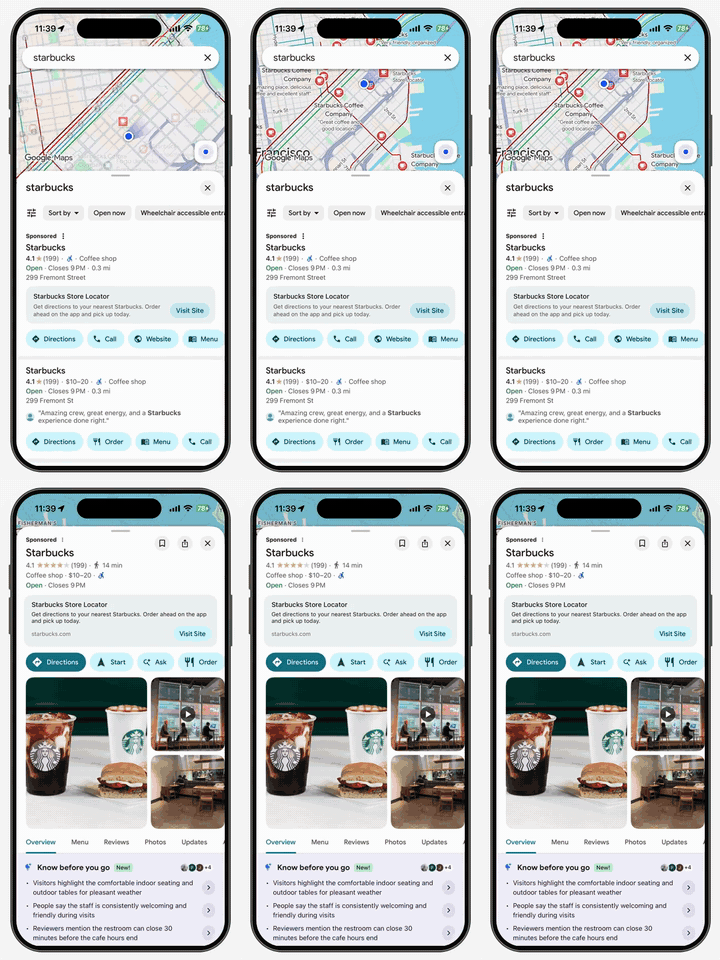 Google Maps: find a Starbucks |
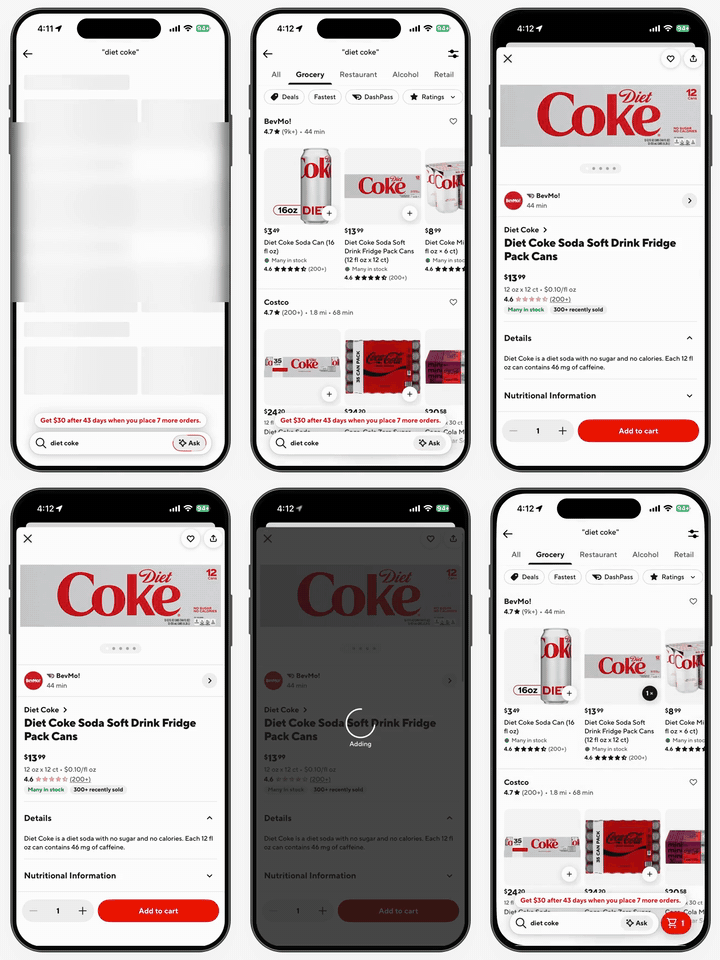 DoorDash: order Diet Coke |
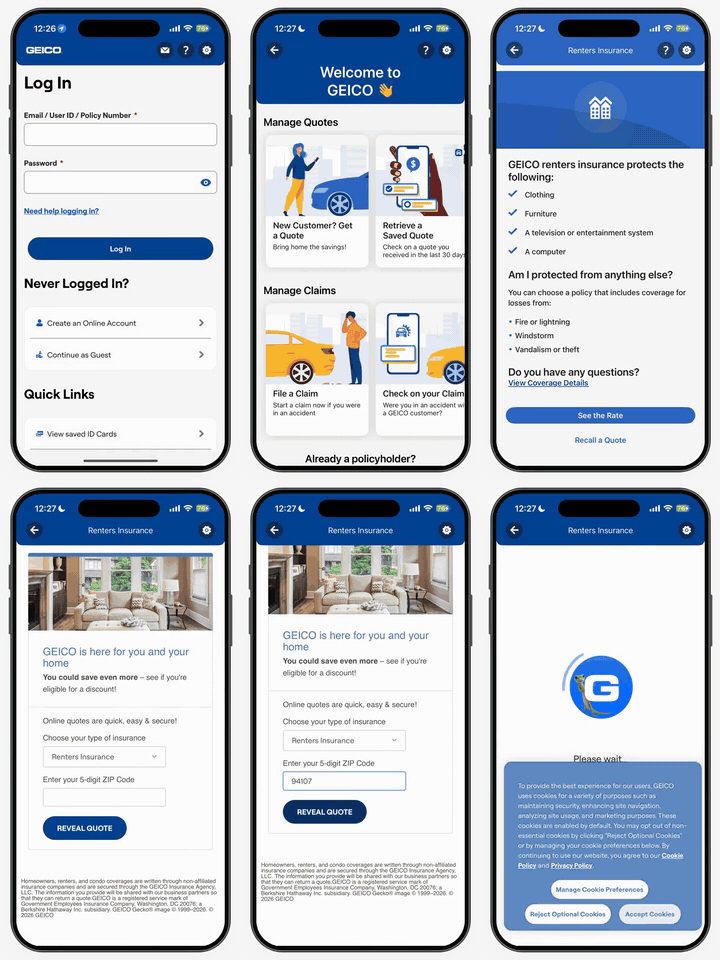 GEICO: start a renters quote |
▶ Watch the 50-second demo · Click any clip above to watch it in full · More demos
Built by PhoneUse.
Want phones without managing hardware on your desk? Explore PhoneUse →
Experimental developer preview. Bring your own Mac, iPhone, Apple signing setup, and model access. This project uses WebDriverAgent. It is separate from the hosted PhoneUse platform and does not include hosted phones, production infrastructure, or a guarantee that every app can be automated.
- Type a prompt in your browser and watch the phone do it.
- Open apps, read what is on the screen (with on-device text recognition), tap, type, and scroll.
- Watch live video of the phone screen. Optional native macOS capture is available.
- Control the phone from your own code (REST API) or from your AI agent (MCP).
- Stop a running task at any time, and keep separate chats in the history sidebar.
Start with a reversible prompt: “Open Safari and describe the current screen. Do not submit anything.” Some apps are harder to control than others, especially ones with icon-only or custom-drawn buttons. A finished task shows Result reported when its answer quotes text seen on the screen, and Needs review when it does not. Either way it is the model's report, so check important results on the phone.
Recorded on a real iPhone with PhoneUse Local. The prompt panel on the left is added for the video, and clips are trimmed for length. Click ▶ Watch to play a video in your browser.
| App | What PhoneUse does | Video |
|---|---|---|
| Overview | The 50-second launch demo. | ▶ Watch |
| TikTok | Browses the TikTok feed. | ▶ Watch |
| Watches Instagram Reels. | ▶ Watch | |
| Telegram | Sends a “good morning” message. | ▶ Watch |
| Google Maps | Finds a Starbucks and shares it. | ▶ Watch |
| GEICO | Sets up a renters insurance quote. | ▶ Watch |
| Browses Reddit and leaves a comment. | ▶ Watch | |
| Amazon | Reviews a Diet Coke order. | ▶ Watch |
| DoorDash | Places an order and texts an update. | ▶ Watch |
Some of these demos send a message, post a comment or place an order. Those are real actions on a real phone. Watch the phone while a task runs, and start with the read-only prompts in docs/DEMOS.md.
- macOS with full Xcode and an iOS version supported by that Xcode installation.
- A USB-connected iPhone that you own or are authorized to control, unlocked and trusted by this Mac.
- Developer Mode and a legitimately signed Appium WebDriverAgentRunner.
- Python 3.13, Node.js 24+, npm, and Git.
- Codex CLI installed and signed in for natural-language tasks. Model access and usage limits belong to your account. This integration was exercised with Codex CLI 0.154.0; its structured-output flags may change.
No jailbreak, pre-signed IPA, Apple developer image, or credential is bundled.
Five steps take you from a fresh checkout to live video in the local web app. Apple requires the WebDriverAgent (WDA) signing and Developer Mode steps; PhoneUse cannot skip them.
Download or clone this repository, open Terminal in the repository folder, and run the installer once:
./"Install PhoneUse.command"It creates the Python environment, installs the locked backend dependencies, and builds the web app. If it reports a missing tool, install the version listed in Requirements and run it again.
- Connect the iPhone to the Mac with USB, unlock it, and tap Trust This Computer if asked. Keep it unlocked during setup.
- On the iPhone, turn on Settings → Privacy & Security → Developer Mode. Restart when asked, then confirm Developer Mode after the restart.
- Get WebDriverAgent only from the official Appium WebDriverAgent repository and follow Appium's real-device setup.
- Open
WebDriverAgent.xcodeprojin Xcode. Select theWebDriverAgentRunnertarget, choose your Apple signing team, set a unique bundle identifier if Xcode asks for one, and select your iPhone as the run destination. - Run Product → Test (⌘U). Fix any signing, trust, or iOS version errors Xcode shows, and keep the test running. PhoneUse needs WDA running on the phone for live video and phone control.
See the full iPhone setup and troubleshooting guide for pairing and the optional start-wda.py launcher. Do not start that launcher while Xcode is already running WDA.
In a Terminal window in the repository folder, run:
./platform/start-api.shLeave this window open. Check that the API is up by opening http://127.0.0.1:8765/health; it should show "ok":true.
In a second Terminal window in the repository folder, run:
./"Start PhoneUse.command"This opens http://localhost:3109/ and connects the page to the API for you (see Why is there an API key?).
The web app keeps running in the background; its log is platform/.state/recording-web.log.
After it connects, the page remembers the key in this browser, including across tabs and browser restarts.
Next time you can open http://localhost:3109/ directly in the same browser. A private window or clearing browser data forgets the key.
If the page shows Connect to your workspace and asks for a key, close the tab and run Start PhoneUse.command again.
- Find the Your iPhone panel on the right. In a narrow window, click Phone screen in the top bar.
- Choose your phone in the phone menu under Your iPhone. Until a phone is found, the menu says Waiting for a phone.
- Wait for the live screen. Make sure the picture is moving, not a dimmed still frame. A still frame is not a live connection.
- Check the badge next to Your iPhone:
- Ready: you can send tasks.
- View only: video works, but phone control does not. WDA is not running or not reachable; go back to step 2.
- If the screen does not appear, click the round-arrow button next to the phone menu (Reconnect screen) once.
You do not need Codex just to see the screen. To send prompts, sign in once:
codex loginIf the API cannot find the Codex CLI, stop the API and start it again like this:
PHONEUSE_CODEX_BIN="$(command -v codex)" ./platform/start-api.shTo choose a model, also set PHONEUSE_CODEX_MODEL to a model your account can use.
.venv/bin/python platform/manage-node-service.py installThis adds a macOS login service named com.phoneuse.local-node. It starts the API when you log in and restarts it if it stops.
Start PhoneUse.command also starts this service if the API is not running.
Use status to check it and remove to turn it off; removing it does not delete your apps, tasks or files.
For first-time setup, run the API in Terminal (step 3) instead, so you can see its output.
| What you see | What it means | What to do |
|---|---|---|
| “Waiting for live phone video. Reconnecting…” | The page is not getting fresh frames. | Check the health link, select the online phone, keep the browser tab in front, and confirm WDA is still running in Xcode. Then click Reconnect screen. |
| “Phone control is offline…”, the View only badge, or “Device port not open” | The Mac can see the phone over USB, but WDA is not running or not reachable. The USB cable alone is not enough. | Repeat step 2 and keep the WDA test running in Xcode. |
| “Connection released. Click Reconnect screen.” | The page's hold on the phone ended. | Click Reconnect screen. |
| The phone menu says Waiting for a phone, or the phone is marked Offline | The phone is locked, not trusted, or not connected. | Unlock it, confirm it trusts this Mac, reconnect USB, and wait a few seconds. |
| Connect to your workspace (asks for a key) | This browser has no saved key: a first visit without the launcher, a private window, cleared browser data, or a key the API rejected. | Close the tab and run Start PhoneUse.command. |
| “API is unavailable…” when starting the page | The API is not running. | Start it with ./platform/start-api.sh (step 3), or install the login service. |
| The page shows a different checkout, or the API reports a port conflict | Ports 8765 (API) and 3109 (web) are fixed. Another PhoneUse install already using 8765 blocks this one, and the launcher connects to whatever is already running on those ports. | See what is using the port with lsof -nP -iTCP:8765 -sTCP:LISTEN. Stop that copy yourself, then restart the API and the page. |
| Prompts fail with a Codex error | The Codex CLI is not signed in, not found, or out of quota. | Run codex login status, then see Turn on natural-language tasks. |
| The agent cannot find a button you can see | Icon-only or custom-drawn buttons have no text to read and no accessibility label. | Tick Use screenshots if controls cannot be found in the chat (this shares screen images with the model), or tap it yourself on the phone. |
| Each task takes a few seconds to start | In OCR mode, every task first builds a small text-recognition helper with Xcode. | This is expected. To skip it, choose Accessibility only in the chat. |
Where to look: API output is in the Terminal running start-api.sh; web app errors are in platform/.state/recording-web.log.
More help: iPhone setup guide.
The local API can tap, type, install and remove apps, and read the phone's screen. Anything that can reach it could control your phone.
- Other websites are already blocked. The API only accepts browser requests from the PhoneUse page and its own docs page (an origin check).
- Other programs on your Mac (scripts, a bad npm or pip package, another user account on the same Mac) do not go through a browser, so the origin check cannot stop them. The key does.
You normally never type the key. The API creates it the first time it starts and saves it in platform/.state/admin-token, readable only by your user account.
Start PhoneUse.command reads that file and passes the key to the page. Once the key works, the page saves it in this browser's
storage so it reconnects by itself; a key the API rejects is removed. Any page served from http://localhost:3109 can read that
storage, so do not run other local web apps on that port (SECURITY.md).
You only see the key screen when this browser has no saved key, for example the first time you open http://localhost:3109 directly,
in a private window, or after clearing browser data. Never paste the key into issues or chats.
Browser at localhost:3109 ── authenticated HTTP / WebSocket ── Local Python API :8765
                                                              ├─ Codex CLI → next action
                                                              ├─ USB → WebDriverAgent → iPhone
                                                              └─ WDA MJPEG → live preview
Prompt tasks read the screen with on-device text recognition (OCR) first and use accessibility data for typing, checking results, and when OCR finds nothing. The chat can switch to "Accessibility only", and can optionally send screenshots to the model when a control cannot be found. Apps with custom-drawn controls may still fail. The agent acts on what your task asks: it will send messages, make purchases, delete data or change settings when the task explicitly says so. Those are model instructions, not a security sandbox. The raw API and manual controls can also perform real actions. Supervise use on personal devices.
- REST API: interactive docs at http://127.0.0.1:8765/docs while the API is running. Every request needs
Authorization: Bearer <key>. - MCP: start the API, then set your MCP client to run the absolute path of
platform/start-mcp.shfrom this checkout. It reads the local key for you. MCP gives your agent the manual phone controls (list phones, screenshots, on-screen elements, tap, type, apps) and does not need Codex. - Client setup: docs/INTEGRATIONS.md has ready-to-copy MCP configs for Claude Code, Claude Desktop, Cursor and Codex, plus REST examples.
- A separate key for a script:
create-key.pymakes a key limited to the phones you name and prints it once:(cd platform && ../.venv/bin/python create-key.py --name my-script --device YOUR_DEVICE_UDID)
The key file is created locally at platform/.state/admin-token. Do not share it or paste it into issues.
All settings are optional environment variables.
| Setting | Used by | What it does |
|---|---|---|
PHONEUSE_CODEX_BIN |
API | Full path to the Codex CLI, if the API cannot find it. |
PHONEUSE_CODEX_MODEL |
API | Codex model to use. It must be available to your account. |
PHONEUSE_CODEX_REASONING_EFFORT |
API | low (default), medium or high reasoning for prompt tasks. |
PHONEUSE_STATE_DIR |
API, MCP | Folder for keys, history and logs. Default platform/.state. Mainly for tests. |
PHONEUSE_WDA_BUNDLE_ID |
API, start-wda.py |
Bundle ID of your signed WebDriverAgent runner. See the iPhone setup guide. |
PHONEUSE_API_URL |
MCP | API address. Default http://127.0.0.1:8765. |
PHONEUSE_TOKEN_FILE |
MCP | File that holds the key. Default admin-token in the state folder. |
PHONEUSE_API_KEY |
MCP | The key itself, instead of the file. |
PHONEUSE_AI_API_KEY |
backend/ai_runner.py |
Model key for the experimental command-line runner only. The web app does not use it. |
Keep keys in private client configuration; never commit them. More examples: docs/INTEGRATIONS.md.
The server listens only on loopback. PhoneUse links are ordinary outbound links, with campaign tags; they do not transfer phone data. The local prompt agent sends your task and screen data to the model provider through your Codex login. By default that is text read from the screen on your Mac (not the image) plus accessibility data. Screenshots are sent only if you tick Use screenshots if controls cannot be found. This is not fully offline inference. Details: SECURITY.md.
Local state includes API tokens, device inventory, task histories, logs and uploaded assets.
It lives in the ignored platform/.state/ directory. Chat history is saved in your browser:
deleting a chat removes it from that browser only, and the API keeps its task records.
Never publish this directory or your Mac's pairing/signing files. See SECURITY.md.
# Backend tests; use disposable state, never your live phone configuration.
export PHONEUSE_STATE_DIR="$(mktemp -d)"
(cd platform && ../.venv/bin/python -m pytest tests -q)
(cd platform/web && npm run typecheck && npm test && npm run build)
python3 scripts/check-public-tree.py| Directory | Contents |
|---|---|
platform/backend |
API, USB device control, agent, MCP and streaming |
platform/web |
Local web UI |
platform/native |
Optional macOS capture helpers |
platform/tests |
Device-free Python tests |
docs |
Integration, demo, release and validation notes |
Historical Calendar/Maps fixture code remains for regression tests; its personal assets and recipient configuration are not distributed.
Do not commit videos or screenshots: scripts/check-public-tree.py rejects them. Demo videos are hosted outside the repository and linked (docs/DEMOS.md).
See CONTRIBUTING.md to help improve setup, reliability and app support.
Use this repo when you want to experiment with your own iPhone and manage its signing and cable connection. For the hosted product, visit phoneuse.com and PhoneUse documentation. These are separate deployments and credentials.
MIT for the project source. Dependencies retain their own licenses; see THIRD_PARTY.md. PhoneUse branding does not grant endorsement of third-party forks.