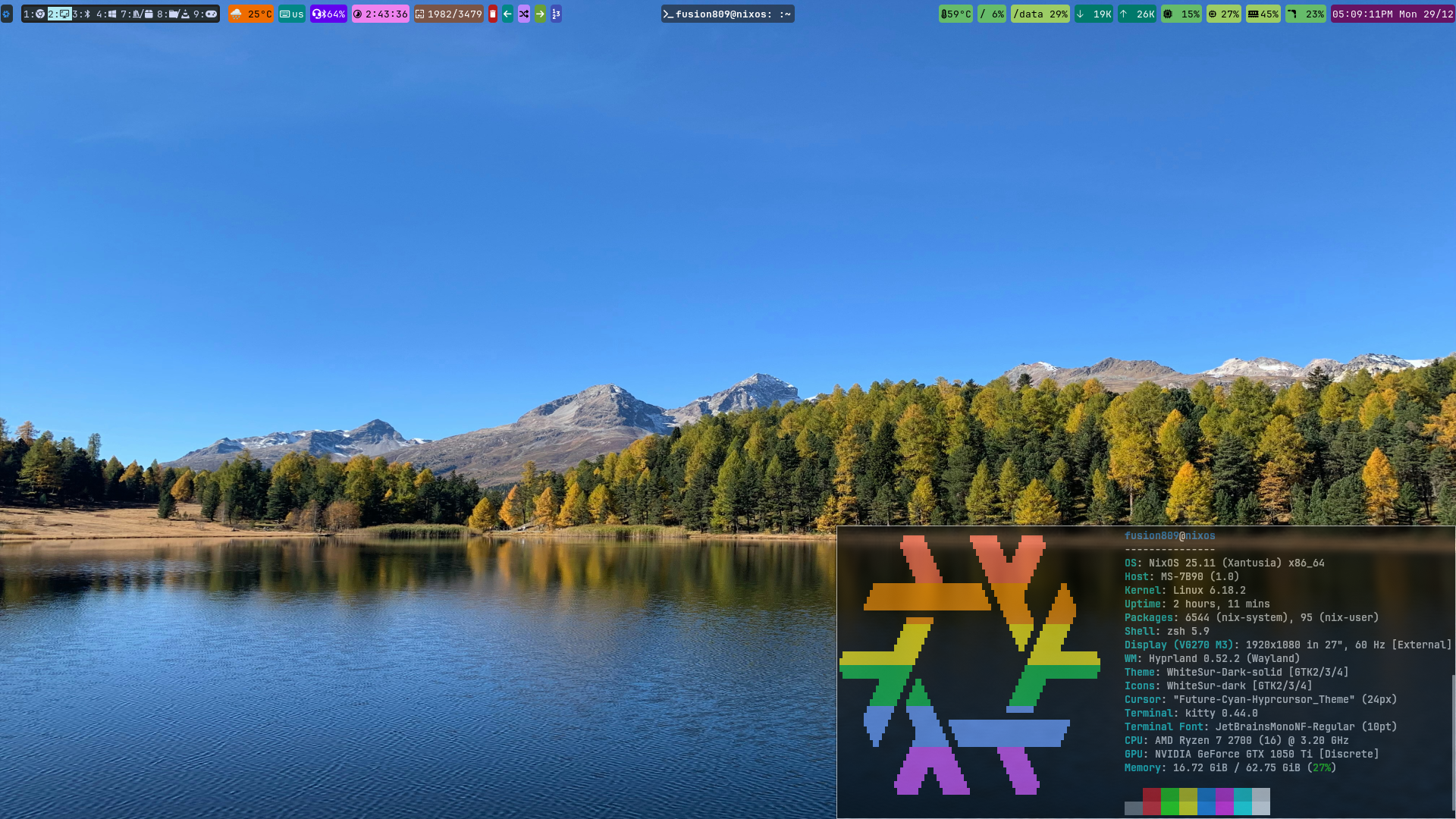
These are my NixOS 25.11 configuration files for my MS-7B90 PC. Hyprland is my graphical user interface (GUI). Flakes are used to manage packages.
| Language | Lines | Lines % | Complexity | Complexity % |
|---|---|---|---|---|
| Shell | 2940 | 43.50% | 336 | 72.10% |
| Nix | 1805 | 26.71% | 94 | 20.17% |
| CSS | 713 | 10.55% | 0 | 0.00% |
| JSONC | 355 | 5.25% | 0 | 0.00% |
| JSON | 337 | 4.99% | 0 | 0.00% |
| Markdown | 322 | 4.76% | 0 | 0.00% |
| Python | 154 | 2.28% | 32 | 6.87% |
| XML | 78 | 1.15% | 0 | 0.00% |
| JavaScript | 41 | 0.61% | 4 | 0.86% |
| TOML | 13 | 0.19% | 0 | 0.00% |
| Total | 6758 | 100.00% | 466 | 100.00% |
Within shell/root is my root shell profile files, and within shell/user is my user shell profile files. I have many functions designed to make my time in the terminal more pleasant.
nixcgis used to remove old generations and sources withsudo nix-collect-garbage -d.nixdgis used to delete specified generations.nixdiffwill show the differences between the two most recent generations of your system.nixfrbis used to build the flake-based system configuration.nixfuwill update your flake.lock file.nixlgwill list generations.nixrb(aliasrebuild) will rebuild your system without using your flake setup.nixrsuwill runnixfuandnixfrb, if nixfu updated flake.lock.nixswill search for a package in a specified repository. First argument is repo name and second argument is the package name.nixspcwill count the number of packages in a specified repository.nixstrepwill try to repair the Nix store, if necessary.nixverwill show the version of your NixOS system based on your installed channels.updatewill runnixrsu,nixstrepandnixcg.upgradewill upgrade your system to the latest stable NixOS release. Shell profile is set up to automatically check for upgrades within 35 days of the end of life of your installed version of NixOS.rollbackwill roll back your system to the previous generation.
Essentially just a copy of the antigravity package in NixOS/nixpkgs with shell/hyprland/updates auto-updating it.
The Marvin package is essentially just a copy of the marvin package in NixOS/nixpkgs; I keep it as an overlay just so that I can more easily update it to the latest version when a new release comes out. I do update it in NixOS/nixpkgs, too, but it can take a month for my PRs to be merged.
The OpenRA package utilizes $HOME/GitHub/others/OpenRA as the source directory for its git repository. It will install the latest git commit and version it as <commit number>.git.<commit 7-character hash>. It is a modified version of the OpenRA package in NixOS/nixpkgs as of ~October 2025. I use this one as it is more up-to-date, builds from a local copy of the git repo and has a version string I prefer.
To update the deps.json file for OpenRA git package, run:
nix-build --arg pkgs '(import <nixpkgs> {})' -A engines.gitin nixpkgs/openra. Or simply run openraup. The package assumes you have a local copy of the OpenRA git repo at ${homeDir}/GitHub/others/OpenRA (where ${homeDir} is from nix/lib.nix).
I run the latest Hyprland, even when NixOS/nixpkgs' Hyprland is not the latest version. It is managed by my nix/flake.nix file and the shell/hyprland/updates script — which is run by Waybar's custom/updates widget — updates it. I also utilize the hy3 plugin to provide the window tabbing I am used to from i3.
shell/hyprland contains shell scripts that are part of my Hyprland setup, or used to launch apps under Hyprland. dotfiles/ contains my Hyprland configuration files and desktop config files for the aforementioned apps.
Applications and programs autostarted include the default browser, virtual machine manager, the Brave browser, Waybar, Discord, Blueman Manager, Kitty (with Hyfetch), WinBoat, GNOME Files, Alacritty, my Debian 13 virtual machine, and cliphist and wl-clip-persist for managing the clipboard. A command is also run to show the next wallpaper, another kills old processes for showing the wallpaper that are errantly running, and another logs network activity so it can be used for creating graphs if one clicks the network widgets in the Waybar.
- Application menu is Rofi.
- File manager is GNOME Files, as it has among the best Wayland support of any graphical file manager.
- Terminal is Alacritty, although Kitty is also installed and used for creating Hyfetch output-inclusive screenshots.
- Text editor/IDE is Antigravity. Neovim and Visual Studio Code are also installed.
- Web browser is Google Chrome, although Brave is also installed.
| Keyboard combination | Action |
|---|---|
| h | Resize window (only in resize mode) to the left. |
| l | Resize window (only in resize mode) to the right. |
| k | Resize window (only in resize mode) down. |
| j | Resize window (only in resize mode) up. |
| Left | Resize window (only in resize mode) to the left. |
| Right | Resize window (only in resize mode) to the right. |
| Down | Resize window (only in resize mode) down. |
| Up | Resize window (only in resize mode) up. |
| F1 | Open workspace #1 |
| Win+2 | Open workspace #2 |
| F3 | Open workspace #3 |
| F4 | Open workspace #4 |
| F5 | Open workspace #5 |
| F6 | Open workspace #6 |
| F7 | Open workspace #7 |
| F8 | Open workspace #8 |
| F9 | Open workspace #9 |
| F10 | Open workspace #10 |
| F11 | Open workspace of Google Chrome. |
| F12 | Open workspace of Nautilus |
| Take a screenshot and copy it to clipboard. | |
| Win+F1 | Open workspace #11 |
| Win+F2 | Open workspace #12 |
| Win+F3 | Open workspace #13 |
| Win+F4 | Open workspace #14 |
| Win+F5 | Open workspace #15 |
| Win+F6 | Open workspace #16 |
| Win+F7 | Open workspace #17 |
| Win+F8 | Open workspace #18 |
| Win+F9 | Open workspace #19 |
| Win+F10 | Open workspace #20 |
| Win+Shift+1 | Move focused window (silently) to workspace #1 |
| Win+Shift+2 | Move focused window (silently) to workspace #2 |
| Win+Shift+3 | Move focused window (silently) to workspace #3 |
| Win+Shift+4 | Move focused window (silently) to workspace #4 |
| Win+Shift+5 | Move focused window (silently) to workspace #5 |
| Win+Shift+6 | Move focused window (silently) to workspace #6 |
| Win+Shift+7 | Move focused window (silently) to workspace #7 |
| Win+Shift+8 | Move focused window (silently) to workspace #8 |
| Win+Shift+9 | Move focused window (silently) to workspace #9 |
| Win+Shift+0 | Move focused window (silently) to workspace #10 |
| Win+Shift+F1 | Move focused window (silently) to workspace #11 |
| Win+Shift+F2 | Move focused window (silently) to workspace #12 |
| Win+Shift+F3 | Move focused window (silently) to workspace #13 |
| Win+Shift+F4 | Move focused window (silently) to workspace #14 |
| Win+Shift+F5 | Move focused window (silently) to workspace #15 |
| Win+Shift+F6 | Move focused window (silently) to workspace #16 |
| Win+Shift+F7 | Move focused window (silently) to workspace #17 |
| Win+Shift+F8 | Move focused window (silently) to workspace #18 |
| Win+Shift+F9 | Move focused window (silently) to workspace #19 |
| Win+Shift+F10 | Move focused window (silently) to workspace #20 |
| Win+a | Expand out of tabbed mode |
| Win+b | Open Brave. |
| Win+c | Open Google Chat Chrome app |
| Win+d | Open rofi dmenu |
| Win+e | Delete currently shown wallpaper and show next one. |
| Win+m | Open WhatsApp web |
| Win+f | Set window to full screen. |
| Win+g | Launch gtop in Alacritty. |
| Win+h | Launch hyfetch in kitty. |
| Win+k | Open kitty terminal. |
| Win+n | Specify the number of wallpaper shown. |
| Win+o | Open RuneScape. |
| Win+p | Open file manager (Nautilus). |
| Win+q | Close current window. |
| Win+s | Change wallpaper to a randomly selected one. |
| Win+t | Enter tabbed mode. |
| Win+v | Open VirtualBox. |
| Win+w | Set wallpaper to the one after the current one specified in $HOME/.cache/swaybg-wallstate |
| Win+z | Set wallpaper to the one before the current one specified in $HOME/.cache/swaybg-wallstate |
| Win+Left | Move focus left. |
| Win+Right | Move focus right. |
| Win+Down | Move focus down. |
| Win+Up | Move focus up. |
| Win+Space | Change keyboard (between US and Brazilian Portuguese). |
| Win+Tab | Open Alacritty terminal. |
| Win+Return | Open Alacritty terminal. |
| Win+Alt+1 | Move focus to tab 1. |
| Win+Alt+2 | Move focus to tab 2. |
| Win+Alt+3 | Move focus to tab 3. |
| Win+Alt+4 | Move focus to tab 4. |
| Win+Alt+5 | Move focus to tab 5. |
| Win+Alt+6 | Move focus to tab 6. |
| Win+Alt+7 | Move focus to tab 7. |
| Win+Alt+8 | Move focus to tab 8. |
| Win+Alt+9 | Move focus to tab 9. |
| Win+Alt+0 | Move focus to tab 10. |
| Win+Alt+F1 | Move focus to tab 11. |
| Win+Alt+F2 | Move focus to tab 12. |
| Win+Alt+F3 | Move focus to tab 13. |
| Win+Alt+F4 | Move focus to tab 14. |
| Win+Alt+F5 | Move focus to tab 15. |
| Win+Alt+F6 | Move focus to tab 16. |
| Win+Alt+F7 | Move focus to tab 17. |
| Win+Alt+F8 | Move focus to tab 18. |
| Win+Alt+F9 | Move focus to tab 19. |
| Win+Alt+F10 | Move focus to tab 20. |
| Win+Ctrl+f | Open nerd fonts cheat sheet webpage in browser. |
| Win+Ctrl+o | Open NixOS options search webpage in browser. |
| Win+Ctrl+p | Open NixOS packages search webpage in browser. |
| Win+Ctrl+r | Rebuild NixOS. |
| Win+Ctrl+s | Repair the Nix store. |
| Win+Ctrl+u | Update NixOS without repairing the Nix store. |
| Win+Ctrl+w | Open NixOS Wiki webpage in browser. |
| Win+Shift+b | Open bluetooth manager |
| Win+Shift+d | Launch Duoingo app. |
| Win+Shift+e | Exit Hyprland. |
| Win+Shift+f | Open Facebook Chrome app. |
| Win+Shift+i | Open Instagram Chrome app. |
| Win+Shift+j | Move window left (not including tabbed windows). |
| Win+Shift+k | Move window down (not including tabbed windows). |
| Win+Shift+l | Move window up (not including tabbed windows). |
| Win+Shift+n | Edit NixOS configuration files. |
| Win+Shift+p | Move tab focus to the left. |
| Win+Shift+q | Open Quora Chrome app |
| Win+Shift+r | Enter window resizing mode. |
| Win+Shift+s | Shutdown OS. |
| Win+Shift+w | Open windows list in rofi |
| Win+Shift+; | Move window right (not including tabbed windows). |
| Win+Shift+Left | Move window left (tabbed windows). |
| Win+Shift+Down | Move window down (tabbed windows). |
| Win+Shift+Up | Move window up (tabbed windows). |
| Win+Shift+Right | Move window right (tabbed windows). |
| Win+Shift+Return | Open workspace of Alacritty terminal. |
| Win+Shift+Space | Toggle float of focused window. |
There is a script within this repository called wallpaper that will, using swaybg, set your background to a wallpaper in Arch's /usr/share/wallpapers, /usr/share/backgrounds, /usr/share/antergos/wallpapers, ~/.local/share/backgrounds, ~/.local/share/wallpapers or ~/Pictures/Wallpapers. It is used by some Waybar widgets mentioned below. I originally used hyprpaper to set the wallpaper, I find hyprpaper more difficult to use and I also use the wallpaper script under Niri.
wallpaper <algorithm/no> [direction]The algorithm/no argument is mandatory; the direction argument is optional.
The algorithm argument decides which algorithm is used to decide the wallpaper set as your background. If you give it the argument random (first letter's case doesn't matter), you will get a randomly decided wallpaper out of those within those specified directories. If you give it the argument systematic (first letter's case also doesn't matter), wallpaper will systematically go through the wallpapers one by one.
An alternative to the algorithm argument is the no argument which specifies the number of the wallpaper to be displayed. Keep in mind that list-wallpapers (which shows wallpapers with Vim line numbers) displays wallpapers with a number one higher than the number used by the wallpaper script (as wallpaper script numbers start at 0, whereas Vim starts at 1).
The direction argument, which is only applicable if the first argument is algorithm, can be "previous" or something else. If it is previous and the first argument is "systematic", this will lead to the previous wallpaper being shown. Otherwise the next wallpaper will be shown. This is also the default behaviour if direction is omitted.
The waybar has the following components, going from left to right:
- The NixOS menu () which gives you options for (all websites opened in Chrome and all directories opened in Antigravity):
- Opening up the Nerd font cheat sheet websites.
- Opening up NixOS-configs repo on GitHub.
- Opening up the NixOS options search.
- Opening up the NixOS packages search.
- Opening up the NixOS Wiki.
- Rebuilding one's system.
- Repairing the Nix store.
- Update one's system without repairing the store.
- Opening NixOS-configs in the default code editor.
- Suspend.
- Hibernate.
- Shutdown.
- Logout.
- Reboot.
- Workspaces (which are numbered).
- Weather conditions, obtained by wttr.in. Beware that wttr.in can be quite unreliable at times.
The background colour of this depends on the temperature. Temperatures of <10°C are blue, between 10 and <15°C are lighter blue, between 15 and <20°C are cyan, between 20 and <25°C are green, between 25 and <30°C are orange, between 30 and <35°C are light red, between 35 and <40°C are medium red and ≥40°C are dark red. - Keyboard layout ( followed by its two-letter initial). I have two colours set up for this widget: us=teal, which is also the default, and br=purple.
- Pulseaudio showing the volume of your output audio device. Has a purple background and white text. You can decrease or increase volume by scrolling on it. Left clicking opens pavucontrol.
- Wallpaper number widget (): it displays the number of the wallpaper most recently displayed on your desktop, then a forward slash, and then the total number of wallpapers you have installed on your system.
- A bin icon () that, when clicked, will delete your current wallpaper and load the next wallpaper.
- A left arrow () that, when clicked, changes your wallpaper to the previous one in your collection (keeping in mind, this is when you're using the systematic algorithm for the wallpaper script).
- A shuffling arrow () that, when clicked, changes your wallpaper to a randomly selected one.
- A forward arrow () that, when clicked, changes your wallpaper to the next systematically selected one.
- A collection of numbers () that, when clicked, changes your wallpaper to a wallpaper whose number you specify in a pop-up window.
- The title of your currently focused window.
- Motherboard temperature () according to sensors.
It is colour coded with <40°C being sky blue, 40 to <60°C being green, 60 to <75°C being orange, 75 to <85°C being light red and ≥85°C being deep red.
Left clicking this opens a graph showing the history of the motherboard temperature. - Used space (/) on your root file system.
If the used disk space is less than 25%, it is green If it is between 25 to <50%, it is lighter green. If it is between 50 to <75%, it is yellow. If it is between 75 to <90%, it is orange. If it is ≥90%, it is red.
Left clicking this opens gtop in Alacritty. Right clicking runs `nixcg` in Alacritty. - Used space (/data) on your data file system.
If the used disk space is less than 25%, it is green If it is between 25 to <50%, it is lighter green. If it is between 50 to <75%, it is yellow. If it is between 75 to <95%, it is orange. If it is ≥95%, it is red. The reason for the higher boundaries is that my /data partition was already very full when this NixOS install was setup. - Internet download speed () on enp24s0 interface in bps.
If the download speed is <10486 bits per second, it is green. If it is between 10486 and <104858 bits per second, it is light green. If it is between 104858 and <1048576 bits per second, it is orange. If it is between 1048576 and <5242880 bits per second, it is light red. If it is ≥5242880 bits per second, it is darker red.
Left clicking this opens nethogs, which is a command-line app monitoring network activity, in Alacritty. Right clicking prompts the user for how long they want to monitor network usage for and then, after this period, it displays network usage and network usage by process. Middle clicking produces a pop up window with a graph of download speed (on enp24s0) history against time. - Internet upload speed () on enp24s0 interface in bps.
If the download speed is <5243 bits per second, it is green. If it is between 5243 and <52429 bits per second, it is light green. If it is between 52429 and <524288 bits per second, it is orange. If it is between 524288 and <5242880 bits per second, it is light red. If it is ≥5242880 bits per second, it is darker red.
Left clicking and right clicking does the same thing as per download speed. Middle clicking largely does the same as per download, except with upload speeds. - CPU usage percentage ().
If the CPU usage is less than 25%, it is green. If it is between 25 to <50%, it is lighter green. If it is between 50 to <75%, it is yellow. If it is between 75 to <90%, it is orange. If it is ≥90%, it is red.
Left clicking this opens gtop, a command-line system monitor app, in Alacritty. Right clicking this opens a graph of the CPU usage over time. - RAM usage percentage ().
If the CPU usage is less than 25%, it is green. If it is between 25 to <50%, it is lighter green. If it is between 50 to <75%, it is yellow. If it is between 75 to <90%, it is orange. If it is ≥90%, it is red.
Left clicking this opens gtop in Alacritty. Right clicking this opens a graph of the RAM usage over time. - GPU memory usage percentage ().
If the GPU memory usage is less than 25%, it is green. If it is between 25 to <50%, it is lighter green. If it is between 50 to <75%, it is yellow. If it is between 75 to <90%, it is orange. If it is ≥90%, it is red.
Left clicking this opens up an Alacritty terminal with nvidia-smi output (showing GPU utilization and processes utilizing it). Right clicking this opens a graph of the GPU memory usage over time. - GPU utilization percentage ().
If the GPU utilization is less than 25%, it is green. If it is between 25 to <50%, it is lighter green. If it is between 50 to <75%, it is yellow. If it is between 75 to <90%, it is orange. If it is ≥90%, it is red.
Left clicking this opens up an Alacritty terminal with nvidia-smi output (showing GPU utilization and processes utilizing it). Right clicking this opens a graph of the GPU utilization over time. - Updates available.1
- "h" indicates updates to home-manager are available.
- "m" indicates updates to nixpkgs-master are available.
- "s" indicates that updates to nixpkgs (stable branch) are available.
- "u" indicates updates to nixpkgs-unstable are available.
- indicates that hy3 updates are available.
- indicates that Hyprland updates are available.
- indicates that OpenRA updates are available.
- indicates that Marvin updates are available.
- Clock with AM/PM time with seconds, short day of the week name, day of the month/month of the year (short format).
Footnotes:
- The script that manages this runs every ~20 minutes, and runs
nixfuas part of checking for updates. If any are available, you merely need to runnixfrbto install them. Left clicking the widget, will open a terminal that runsnixfrb.
6e524bcfb7db7653ac4df86b378faab6e25a7bf3 was the final commit with vim-ai with deepseek-coder model. Was removed as it wasn't useful for me.