

Integrate AI & Agent directly into Microsoft Word


Features •
Getting Started •
Installation •
Usage
English | 简体中文
Word GPT Plus seamlessly integrates AI and Agent directly into Microsoft Word, allowing you to generate, translate, summarize, and polish text directly within your documents. Enhance your writing workflow without leaving your Word environment.

-
Multiple Platform Support with Latest Models:
- OpenAI: Latest GPT series (compatible with DeepSeek and other OpenAI-compatible interfaces)
- Azure OpenAI: Full Azure integration with custom deployment names
- Google Gemini: Gemini 3 Pro/Flash, Gemini 2.5 Pro/Flash, AQA
- Ollama : Available for local deployments only
- Groq: Llama 3.3/4, Qwen3, Kimi-K2, and more
- Custom model names supported for all platforms
-
Intelligent Agent Mode (Powered by LangChain):
- Direct Word Document Manipulation: Agent can read, write, and modify your Word documents
- Multiple Built-in Word Tools: Web search, Insert text, format content, create tables, manage bookmarks, search and replace, and more
- Multi-step reasoning with conversation memory
- Streaming responses with real-time updates
- Thought process visualization with collapsible details
-
Dual Chat Modes:
- Chat Mode: Quick Q&A and content generation
- Agent Mode: Advanced document manipulation with tool access
-
Quick Actions:
- One-click translation (40+ languages)
- Text polishing and improvement
- Academic writing enhancement
- Content summarization
- Grammar checking and correction
-
Customization & Flexibility:
- Add custom models for each provider
- Save and manage custom prompts
- Adjust temperature and max tokens per provider
- Support for custom base URLs and proxies
- Local storage for complete privacy
- Multilingual interface (English, 简体中文)
-
Advanced Formatting:
- Automatic Word Formatting: AI responses formatted with proper Word styles
- Markdown parsing and conversion to Word formatting
- Per-message actions: replace, append, or copy
-
Modern User Experience:
- Clean, copilot-style interface
- Real-time streaming responses
- Quick model and provider switching
- Abort generation at any time
- Microsoft Word 2016/2019 (retail version), Word 2021, or Microsoft 365
- Edge WebView2 Runtime
- Node.js 24.21.0 LTS / pnpm 12.11.2 (only for self-hosting)
Note: Works only with .docx files (not compatible with older .doc format)
- OpenAI: Obtain an API key from OpenAI Platform
- Azure OpenAI: Apply for access at Azure OpenAI Service
- Google Gemini: Request API access from Google AI Studio
- Groq: Get your API key from Groq Console
Choose the method that best suits your needs:
Best for most users. No coding required.
- Download
release/instant-use/manifest.xmlmanifest.xml. - Save it to a dedicated folder on your computer (e.g.,
C:\Users\username\Documents\WordGPT). - Proceed to the Add-in Installation Guide.
Note for users in China: If you experience connectivity issues, try adding
msq.pubto your proxy rules or use the self-hosted option.
For developers or those requiring a private backend.
Docker Deployment
-
Pull and run the Docker image:
docker pull kuingsmile/word-gpt-plus
docker run -d -p 3000:80 kuingsmile/word-gpt-plus
-
Download manifest.xml.
-
Edit
manifest.xml: Replace all instances ofhttp://localhost:3000with your server's address. -
Proceed to the Add-in Installation Guide.
Build from Source
Requires Node.js 24.21.0 LTS / pnpm 12.11.2
The exact Node version is recorded in .node-version, .nvmrc, and package.json; the pnpm version is
recorded in packageManager. CI reads these pins and Docker uses the same versions. Install Node first
(or run nvm install and nvm use), then use the commands below. Remove any old node_modules directory
when switching from Yarn. Commit pnpm-lock.yaml after dependency changes.
If an existing pnpm command is managed by Corepack, run corepack disable pnpm before the npm installation
below. Corepack 0.36.0 targets the old bin/pnpm.cjs entry point, which pnpm 12 no longer ships. Install the
pinned pnpm directly with npm; do not run corepack enable pnpm afterward.
-
Clone and start the project:
git clone https://github.com/Kuingsmile/Word-GPT-Plus.git
cd Word-GPT-Plus
npm install --global pnpm@12.11.2
pnpm install --frozen-lockfile
pnpm build
pnpm serve
For development, run
pnpm dev. Runpnpm formatto format code. Before submitting changes, runpnpm check(formatting, ESLint, Stylelint, TypeScript, and circular dependencies) andpnpm build. CI runs the same checks.pnpm czuses czg with the existing emoji commit convention;pnpm release --dry-runpreviews a release. -
Use the self-hosted manifest.xml.
-
Proceed to the Add-in Installation Guide.
Versions were checked on 2026-10-13 against the official Node release index,
Node support schedule,
pnpm package metadata, and
Docker image tags.
Dependencies use current stable releases with compatible peer requirements. TypeScript stays on ~6.0.3
because typescript-eslint@8.71.2 supports TypeScript <6.1.0. The deprecated lucide-vue-next package
was replaced by @lucide/vue; unused Stylus, JSON5, and style-order tooling was removed. The release tools
now declare their dependencies explicitly, with czg replacing the legacy Commitizen dependency tree.
Deploy to Tencent EdgeOne

Set the deployment environment to Node.js 24.21.0 before running the install command.
To get started with Word GPT Plus, you will need to sideload the add-in into Microsoft Word.
You can find instructions provided by MicroSoft at the following link: sideload office add-ins
- Go to the folder where you saved the
manifest.xmlfile, for exampleC:\Users\username\Documents\WordGPT. - Open the context menu for the folder(right-click the folder) and select Properties.
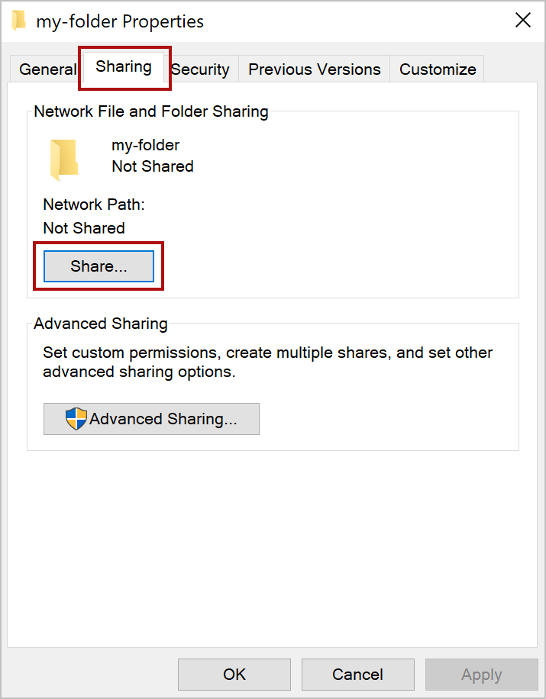
- Within the Properties dialog box, select the Sharing tab, and then select Share.
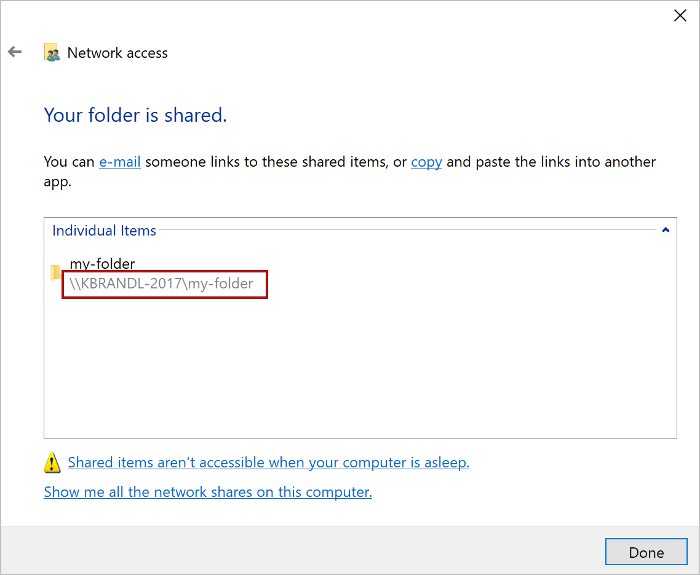
- Within the Network access dialog box, add yourself and any other users you want to share, choose the Share button, When you see confirmation that Your folder is shared, note the full network path that's displayed immediately following the folder name.
- Open a new document in Word, choose the File tab, and then choose Options.
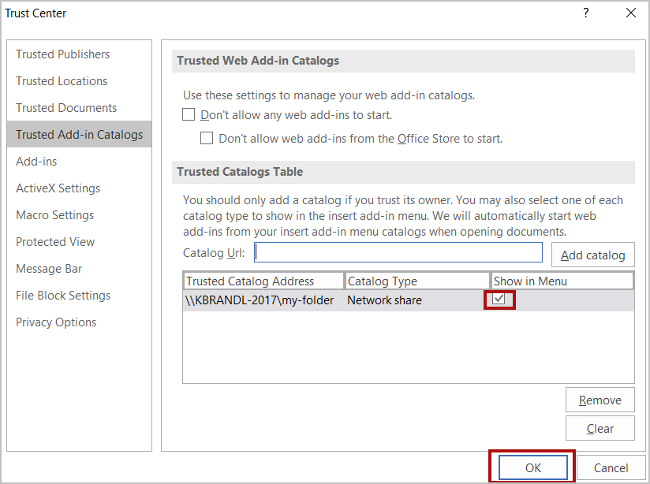
- Choose Trust Center, and then choose the Trust Center Settings button.
- Choose Trusted Add-in Catalogs.
- In the Catalog Url box, enter the full network path and then choose Add Catalog.
- Select the Show in Menu check box, and then choose OK.
- Close and then restart Word.
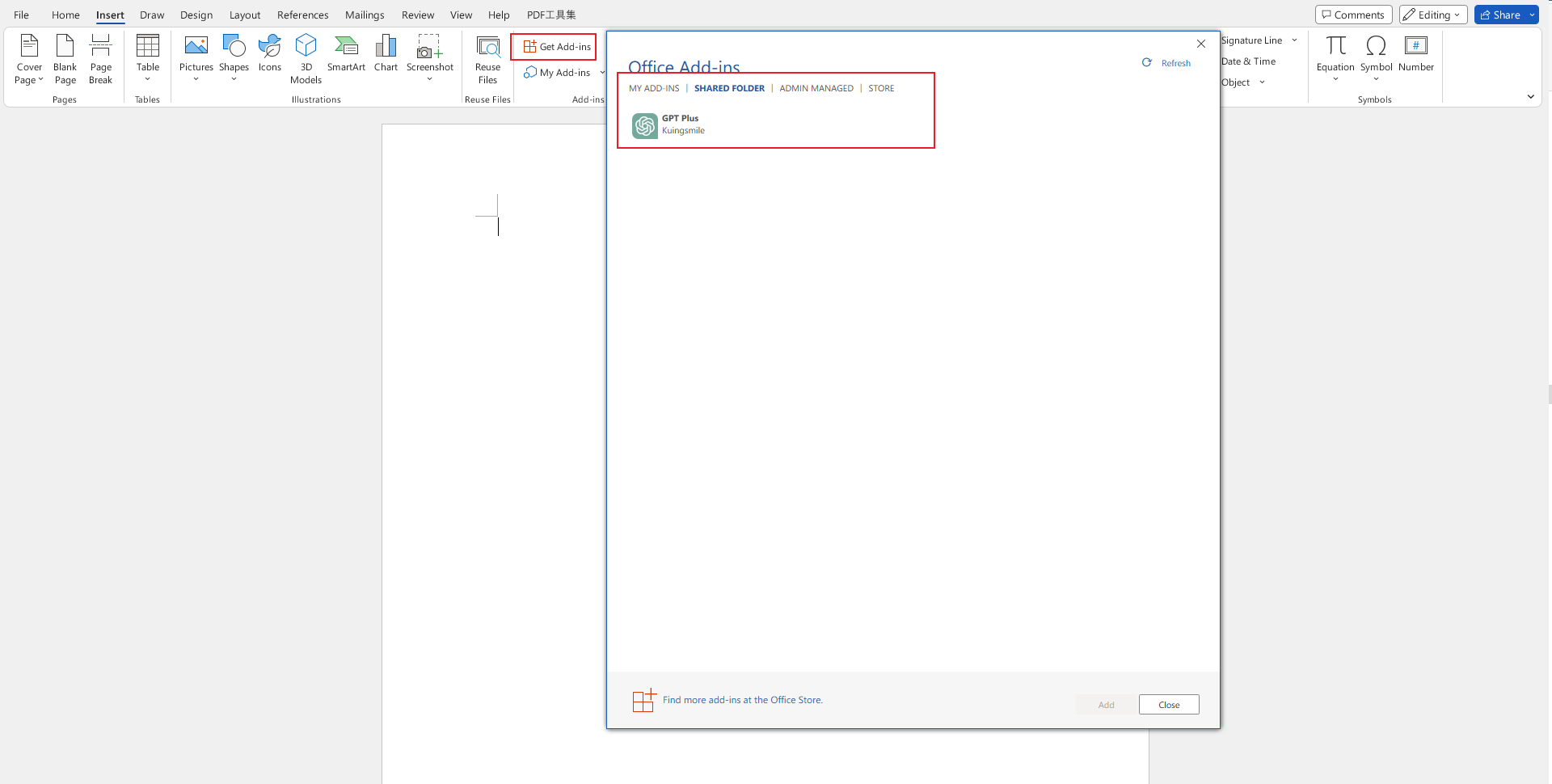
- Click Insert > My Add-ins > Shared Folder, choose GPT Plus, and then choose Add.
- Enjoy it!
After entering Word GPT Plus, click the Settings button on the homepage to configure your preferred AI provider and API key.
Use the chat mode for:
- Quick Q&A and information queries
- Content generation and brainstorming
- Language translation
- Text improvement and polishing
Simply type your message and press Enter. Use the quick action buttons for common tasks.
Agent mode gives the AI direct access to your Word document through 25+ specialized tools:
General Tools:
- Web search and access
- Numerical calculations
- Date retrieval
Web search is off until you enable Search Web in Settings → Tools. Enabling it permits sending search queries
to https://ddgs.horosama.com/search/text, which is also shown beside the setting. Missing tool preferences keep the
other default tools available; an explicitly empty list disables that category, and invalid preferences grant no
tools. Permissions are checked before each model call and tool execution, including restored conversations.
Document Reading Tools:
- Get selected text or full document content
- Search for specific text
- Get document properties and table information
Document Writing Tools:
- Insert, replace, or append text at specific locations
- Create formatted paragraphs with styles
- Insert tables and lists
- Add bookmarks and content controls
Document Formatting Tools:
- Apply bold, italic, underline, and other formatting
- Change font names and styles
- Clear formatting
- Search and replace text patterns
Example Agent Prompts:
- "Read the entire document and create a summary at the beginning"
- "Format all section headings as Heading 2 and make them blue"
- "Insert a paragraph after the first heading explaining the main topic"
Click the quick action buttons for instant operations:
- 🌐 Translate: Translate selected text to your preferred language
- ✨ Polish: Improve writing quality and clarity
- 📚 Academic: Enhance for academic writing
- 📝 Summarize: Create concise summaries
- ✔️ Grammar: Check and correct grammar
For each AI provider, you can add custom models:
- Go to Settings → Provider tab
- Select your provider
- Enter custom model name and click Add
- The model will appear in the model dropdown
- Temperature: Lower (0.3-0.5) for factual tasks, higher (0.7-1.0) for creative tasks
- Max Tokens: Increase for longer responses, decrease for concise answers
- Custom Base URL: Use for OpenAI-compatible services like DeepSeek
- Local Storage: Your API keys and custom prompts are stored in browser local storage (within the Word add-in environment). They are never sent to our servers.
- Direct Connection: The add-in communicates directly with AI providers (OpenAI, Azure, etc.) or your local Ollama instance. There are no intermediary servers handling your data unless you use a custom proxy.
If you have a suggestion that would make this better, please fork the repo and create a pull request.
MIT License
Give a ⭐️ if this project helped you!