
Riso-fy (almost) anything.
 Before |
 After: pink + blue, halftone dots, 2px misregistration |
Fluoro fakes risograph prints in the browser. It rebuilds the print process instead of applying a filter: one layer per ink, each screened to 1-bit, then overprinted on paper with a little misregistration and grain. It works on images, and on live web pages, so any site can add a Riso-fy button with one line of HTML. The package has no dependencies.
<script src="https://cdn.jsdelivr.net/npm/fluoro-riso" defer></script>Fluoro is on npm as fluoro-riso. It can print a whole page, chosen sections, or single images, and it works on sites you didn't build with it.
No install needed. Paste this before the closing </body> tag:
<script src="https://cdn.jsdelivr.net/npm/fluoro-riso" defer></script>A Riso-fy button appears in the bottom-right corner. Clicking it prints the page in two inks, pink and blue unless you pick others, and clicking Show original restores it. The choice is remembered on the next visit. Text stays live, so links, forms and text selection keep working while the page is printed.
Settings go on the script tag as attributes:
| Attribute | What it does | Example |
|---|---|---|
data-inks |
Picks an ink preset: pink-blue (default), orange-teal or green-purple. |
data-inks="orange-teal" |
data-ink-a, data-ink-b |
Sets each ink to any color, overriding the preset. | data-ink-a="#ff48b0" |
data-paper |
Sets the paper color. | data-paper="#fdf6e3" |
data-grain |
Sets the grain strength. The default is 1.5; lower is cleaner. |
data-grain="1" |
data-mode |
"filter" swaps the fast default print for the SVG filter, with real 1-bit separations and misregistration. See Two print modes. |
data-mode="filter" |
data-misregistration |
Sets how far the second ink is offset, in pixels, in filter mode. The default is 2. |
data-misregistration="4" |
data-target |
Prints only the elements matching a CSS selector instead of the whole page. This uses filter mode. | data-target=".hero" |
data-button |
"false" hides the corner button, so you can use your own. |
data-button="false" |
To use your own button, hide the default one and call Fluoro.toggle():
<button type="button" onclick="Fluoro.toggle()">Print this page</button>
<script src="https://cdn.jsdelivr.net/npm/fluoro-riso" data-button="false" defer></script>
The corner button is styled at zero specificity, so any rule for .fluoro-button in your own CSS overrides it.
To lock a version so updates never change your site, add it to the URL: https://cdn.jsdelivr.net/npm/fluoro-riso@0.1.
npm install fluoro-risoimport { apply, remove, toggle, printImage } from "fluoro-riso";
// print the whole page in your own inks, or only some elements
apply({ inkA: "#ff6c2f", inkB: "#00838a" });
apply({ target: ".hero" });
// print an image with real halftone dots; returns a canvas
const print = printImage(document.querySelector("img"), { screen: "halftone", cell: 6 });In React or Next.js, call it from a client component:
"use client";

import { toggle } from "fluoro-riso";

export default function RisoButton() {
  return (
    <button type="button" onClick={() => toggle()}>
      Riso-fy
    </button>
  );
}
The package doesn't touch the page until you call it, so importing it during server rendering is safe.
| Export | What it does |
|---|---|
apply(options) / remove(options) / toggle(options) |
Print or restore the whole page, or a target selector or element. |
isOn() / onChange(fn) |
Read whether the page is printed, or get called with true or false when it changes. |
createButton(options) |
A ready-made toggle button. remember: false stops it saving the choice. |
buttonStyles(options) |
Default CSS for that button. |
printImage(source, options) |
Runs the canvas pipeline on an image, canvas or video frame. |
filterMarkup(options) / svgMarkup(options) |
The SVG filter as a string, with no DOM access, for server rendering or custom setups. |
applyLite(options) / removeLite() |
Lite mode on its own, without the page state. |
INKS / PAPER |
The ink presets and the default paper color. |
Options use the same names as the script-tag attributes, in camel case: inkA, inkB, paper, grain, mode, misregistration and target.
Lite is the default. It lays three fixed blend layers over the page: it pushes the midtones toward ink A, turns the darks into the overprint color of both inks, and puts everything on paper with a scatter of ink A grain. Nothing on the page is filtered, and all three blend modes run on the GPU, so scrolling stays fast, videos and animations keep playing smoothly, and fixed headers keep working in every browser. It's a tint rather than a true separation, so it has no misregistration or halftone dots.
Filter runs an SVG filter over the page instead, with real 1-bit separations, grain and misregistration. It re-runs on every repaint, so long or animated pages can scroll slowly, and Safari and Firefox print the body rather than the whole page (see Browser support). It's also what prints single sections with target.
apply();                   // lite
apply({ mode: "filter" }); // svg filter
apply({ target: ".hero" }); // filter, on that section only
In lite mode, anything with a z-index above 2147482000 sits above the layers and stays unprinted, which is how the Riso-fy button stays in its own colors; a site's own toggle button can do the same. Lite options: inkA, inkB, paper, mids (how strongly the midtones take ink A, default 0.7), grain (default 1.5), desaturate and zIndex.
desaturate: true adds a fourth layer that strips the page's own colors first, which helps very colorful sites print cleanly in two inks. It uses the saturation blend mode, which Safari draws in software, so leave it off on long or animated pages.
Lite mode, the default, prints the whole page the same way in every current browser, with fixed headers staying fixed.
Filter mode also works everywhere, but how it handles fixed elements differs:
| Browser | What gets printed | Fixed headers and sticky elements |
|---|---|---|
| Chrome, Edge, Arc, Brave | The whole page, from the root element | Stay fixed and are printed too |
| Safari, Firefox, Zen, and all iOS browsers | The page body | Scroll with the page while it is printed, and some fixed or animated elements keep their original colors |
The difference comes from how browsers draw fixed elements: Safari and Firefox drop a filter on the root element when the page contains one, so outside Chrome-based browsers Fluoro prints the body and keeps its own button outside it.
printImage can only read images from your own site, or from other sites that send CORS headers. Both page modes work on everything the browser draws, including video.
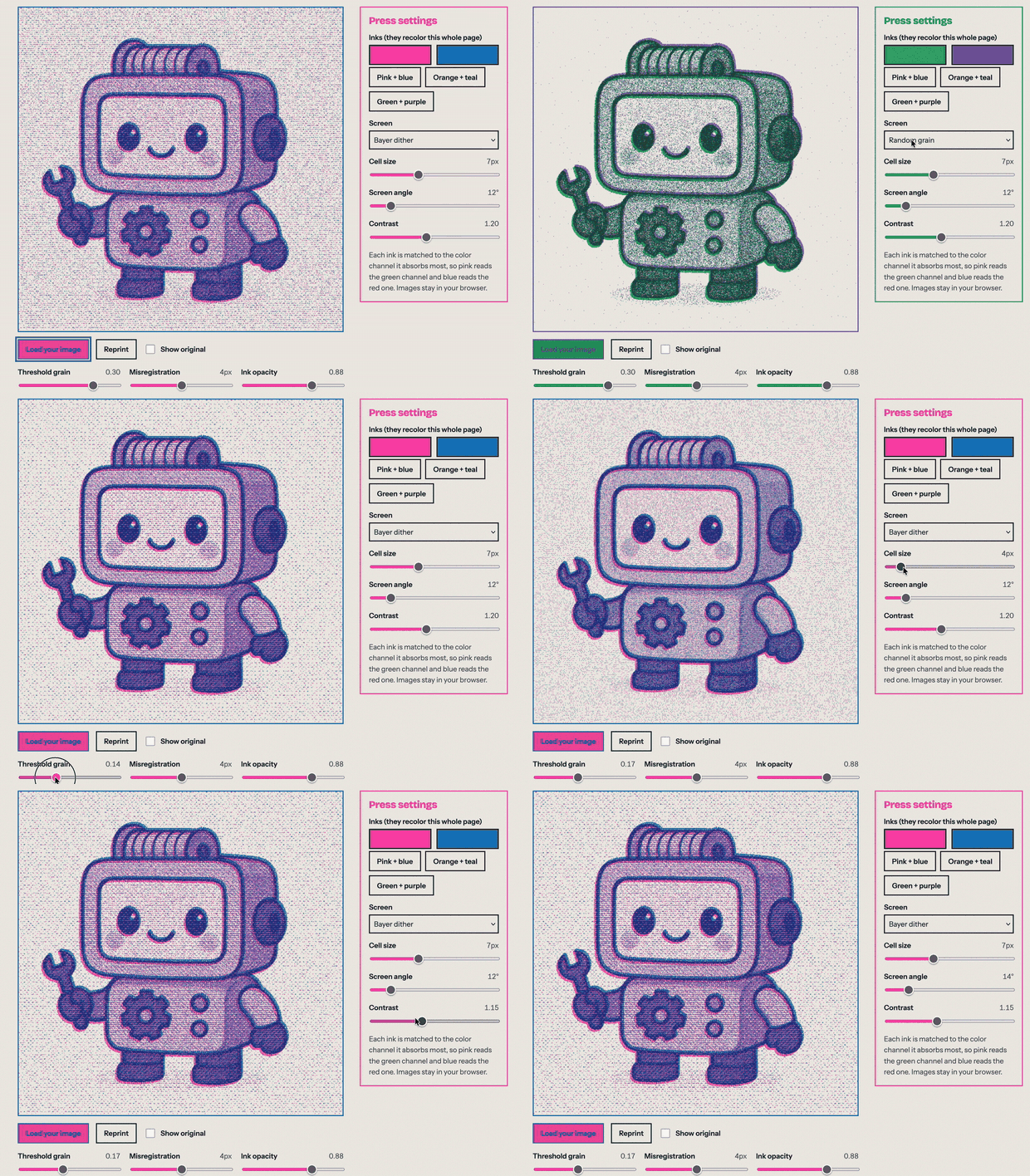
The Fluoro tool is at fluoro-riso.vercel.app: load your own image, pick inks and a screen, pull reprints, and see the same print applied to a live page layout. Images are downscaled to 640px on the long side and never leave the browser.
To run it locally, open index.html in a browser; it works from file://. To work on the package too, run npm install once, then npm run dev and open http://127.0.0.1:5173, which serves the site and rebuilds dist/fluoro.js on every reload.
Each ink is matched to the color channel it absorbs, that channel becomes a coverage map, the map is screened to 1-bit with halftone dots, a Bayer dither or grain, and the layers are multiplied onto paper with the second ink slightly offset. Filter mode does the same separation on the page inside an SVG filter, and lite mode, the default, approximates it with blend layers.
The full write-up, with figures for every stage, the decisions behind it, the tool's settings and the project structure, is in How Fluoro works.
- Filter mode re-runs on every repaint, so long pages with many animations can scroll less smoothly while printed. Lite mode, the default, doesn't have this problem.
- In filter mode, outside Chrome-based browsers, fixed headers scroll with the page while it is printed. See Browser support.
- The filter produces grain rather than true halftone dots. Use the canvas pipeline when you need dots.
- Two inks cannot reproduce every color. Pick inks that suit the image.
MIT