In this tutorial, we’ll create a data pipeline that does the following:
- Load data from an online endpoint
- Visualize the data using charts
- Transform the data and create 2 new columns
- Write the transformed data to PostgreSQL
If you prefer to skip the tutorial and view the finished code, follow this guide.
If you haven’t setup a project before, check out the setup guide before starting.
In the top left corner, click File > New pipeline.
Then, click the name of the pipeline and rename it to etl demo.

- Click the
+ Data loaderbutton, selectPython, then click the template calledAPI. - Rename the block to
load dataset. - In the function named
load_data_from_api, set theurlvariable to:https://raw.githubusercontent.com/mage-ai/datasets/master/restaurant_user_transactions.csv. - Run the block by clicking the play icon button or using the keyboard shortcuts
⌘ + Enter,Control + Enter, orShift + Enter.
After you run the block (⌘ + Enter), you can immediately see a sample of the data in the block’s output.

Here is what the code should look like:
import io
import pandas as pd
import requests
from pandas import DataFrame

if 'data_loader' not in globals():
    from mage_ai.data_preparation.decorators import data_loader
if 'test' not in globals():
    from mage_ai.data_preparation.decorators import test


@data_loader
def load_data_from_api() -> DataFrame:
    """
    Template for loading data from API
    """
    url = 'https://raw.githubusercontent.com/mage-ai/datasets/master/restaurant_user_transactions.csv'

    response = requests.get(url)
    return pd.read_csv(io.StringIO(response.text), sep=',')


@test
def test_output(df) -> None:
    """
    Template code for testing the output of the block.
    """
assert df is not None, 'The output is undefined'We’ll add a chart to visualize how frequent people give 1 star, 2 star, 3 star, 4 star, or 5 star ratings.
- Click the
+ Add chartbutton in the top right corner, then clickHistogram. - Click the pencil icon in the top right corner of the chart to edit the chart.
- In the dropdown labeled "Number column for chart", select the column
rating. - Click the play button icon in the top right corner of the chart to run the chart.

Your chart should look like:

Let’s add another chart to see how many meals each user has.
- Click the
+ Add chartbutton in the top right corner, then clickBar chart. - Click the pencil icon in the top right corner of the chart to edit the chart.
- In the dropdown labeled "Group by columns", select the column
user ID. - Under the "Metrics" section, in the dropdown labeled "aggregation", select
count_distinct. - Under the "Metrics" section, in the dropdown labeled "column", select
meal transaction ID. - Click the play button icon in the top right corner of the chart to run the chart.

Your chart should look like:

Let’s transform the data to add a column that counts the number of meals for each user.
- Click the
+ Transformerbutton, selectPython, selectAggregate, then clickAggregate by distinct count. - Rename the block to
transform data. - Change the argument named
argumentstoarguments=['meal transaction ID']. - In the dictionary with the
'groupby_columns'key, change the value to{'groupby_columns': ['user ID']}. - Change the argument named
outputsto:
outputs=[
    {'uuid': 'number of meals', 'column_type': 'number'},
],- Run the block by clicking the play icon button or using the keyboard shortcuts
⌘ + Enter,Control + Enter, orShift + Enter.

Here is what the code should look like:
from mage_ai.data_cleaner.transformer_actions.base import BaseAction
from mage_ai.data_cleaner.transformer_actions.constants import ActionType, Axis
from mage_ai.data_cleaner.transformer_actions.utils import build_transformer_action
from os import path
from pandas import DataFrame

if 'transformer' not in globals():
    from mage_ai.data_preparation.decorators import transformer
if 'test' not in globals():
    from mage_ai.data_preparation.decorators import test


@transformer
def execute_transformer_action(df: DataFrame, *args, **kwargs) -> DataFrame:
    """
    Execute Transformer Action: ActionType.COUNT_DISTINCT

    Docs: https://github.com/mage-ai/mage-ai/blob/master/docs/actions/transformer_actions/README.md#aggregation-actions
    """
    action = build_transformer_action(
        df,
        action_type=ActionType.COUNT_DISTINCT,
        action_code='',  # Enter filtering condition on rows before aggregation
        arguments=['meal transaction ID'],  # Enter the columns to compute aggregate over
        axis=Axis.COLUMN,
        options={'groupby_columns': ['user ID']},  # Enter columns to group by
        outputs=[
            # The number of outputs below must match the number of arguments
            {'uuid': 'number of meals', 'column_type': 'number'},
        ],
    )

    return BaseAction(action).execute(df)


@test
def test_output(df) -> None:
    """
    Template code for testing the output of the block.
    """
assert df is not None, 'The output is undefined'- On the left side of the screen in the file browser, click on the file named
io_config.yaml. - Then, paste the following credentials:
version: 0.1.1
default:
  POSTGRES_DBNAME: mage/demo
  POSTGRES_HOST: db.bit.io
  POSTGRES_PASSWORD: v2_3t7Cc_BKPZndtNeYxqSVTatNphR4f
  POSTGRES_PORT: 5432
POSTGRES_USER: mage- Save the file by pressing
⌘ + EnterorControl + Enter. - Close the file by pressing the
Xbutton on the right of the file name at the top of the screen.

- Click the
+ Data exporterbutton and selectSQL. - Under the
Data providerdropdown, selectPostgres. - Under the
Profiledropdown, selectdefault. - In the input field labeled
Save to schema:, entermage. - Under the
Write policydropdown, selectReplace. - Enter the following SQL query in the code block:
SELECT * FROM {{ df_1 }} - Execute the entire pipeline by pressing the
Execute pipelinebutton on in your sidekick on the right.
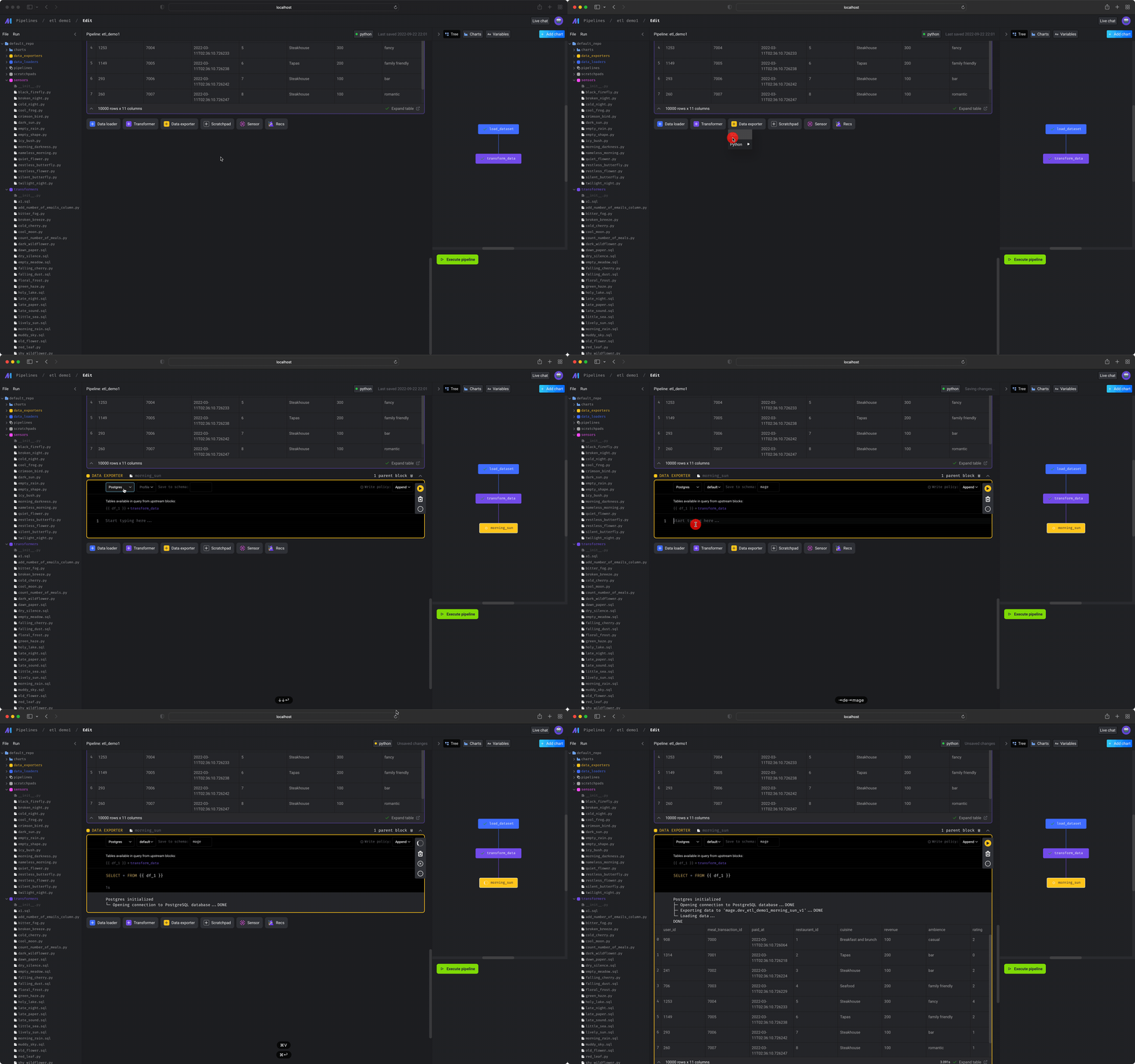
Your output should look something like this:
aving current pipeline config for backup. This may take some time...
[load_dataset] Executing data_loader block...
[load_dataset] --------------------------------------------------------------
[load_dataset] 1/1 tests passed.
[load_dataset] DONE
[transform_data] Executing transformer block...
[transform_data] --------------------------------------------------------------
[transform_data] 1/1 tests passed.
[transform_data] DONE
[morning_sun] Executing data_exporter block...
[morning_sun] Postgres initialized
[morning_sun] └─ Opening connection to PostgreSQL database...
[morning_sun] DONE
[morning_sun]
[morning_sun] ├─
[morning_sun] └─ Exporting data to 'mage.dev_etl_demo_morning_sun_v1'...
[morning_sun] DONE
[morning_sun]
[morning_sun] ├─
[morning_sun] └─ Loading data...
[morning_sun] DONE
[morning_sun] --------------------------------------------------------------
[morning_sun] 0/0 tests passed.
[morning_sun] DONE
Pipeline etl_demo execution complete.
You can see the code block output in the corresponding code block.
You’ve successfully built a pipeline for loading data, transforming it, and exporting it to PostgreSQL.
If you have more questions or ideas, please
live chat with us in