Home
Sim Script is a standalone windows application written in Python that offers input/output automation for simulators.
| Functionality | Input/Output | Comment | Status |
|---|---|---|---|
| Joystick | In | Read from Joysticks | Working |
| Phidgets | In | Read from Phidgets | Working |
| Virtual Joystick | Out | Write to (VJoy) Joysticks | Working |
| Keyboard | In/Out | Read/Simulate Keyboard input | Working |
| Mouse | In | Read low level mouse data | Working |
| FSX | In/Out | Read/write FSX Variables via Sim Connect, Send Simulator Events | Working |
| Falcon | In | Read from Falcon BMS Shared Memory | Working |
Imagine a simulator that doesn't have a joystick axis for gear operation but your joystick tempts you with an extra axis:
..
value = joysticks.get("Some Joystick").axis(0)
# see below for example on how to use this value
..
Imagine a simulator that has multiple axis and you're building a custom cockpit with rotating phidgets (encoders).
..
value = phidgets.get("some-phidget-id").getInputValue(0)
# see below for example on how to use this value
..
The scripts for Sim Script are python files (.py) that you place into the scripts folder. Sim Script looks for the these scripts and allows you to select one to be run. This script is executed automatically and repeatedly - it's fairly easy to access inputs and outputs from this sripts (see Examples below).
Follow these steps to get Sim Script
-
Prepackaged
- Install VJoy driver for Virtual Joystick output
- Install Phidgets driver for Phidget input
- download and unzip a simscript release archive to a directory of your choice and run
simscript.exe
-
From Source
-
Install Python 2.7.3 or 3.2.3 (32 or 64 bit)
-
Install PyWin (make sure to match Python version and platform]
-
Install VJoy driver for Virtual Joystick output
-
Install [driver](http://www.phidgets.com/docs/Operating_System_Support Phidgets) for Phidget input
-
Install a git command line client
-
Checkout Sim Connect via
git clone https://github.com/nmeier/fscode.git
-
run
python simscript.py
-
Then make sure to connect one or more Joysticks or Phidgets. Once you run Sim Script you'll see a status icon in the Windows Tray which allows you to pick which script to run.
Sim Script can be invoked with an optional name of a script that resides in the scripts folder as per
C:\simscript>simscript.[exe|py] --help
Usage: simscript.py -d|--debug [scriptname]
A Windows Tray icon shows actions in a popup when clicked on:
| Action | Comment |
|---|---|
| Quit | terminate Sim Script |
| Edit | show existing script files |
| Log | show current log (contains important Warnings, Errors and script information) |
| somescript.py | an entry for every provided script in the scripts folder (currently running script it checked |
The scripts for Sim Script are normal python source code - the only difference is that a selected script is run automatically, repeatedly. Check the reference for capabilities and how to program in Python.
Provided are the following modules that come specifically with Sim Script - they can be imported via a statement like this, shown in the examples below and the provided out-of-the-box scripts:
import joysticks, phidgets, logs, fsx

...
Here is a list of modules and what they're there for:
| Module | Comment | Example |
|---|---|---|
| joysticks | access (virtual) joysticks | joysticks.get("Name of Joystick") |
| phidgets | access Phidgets | phidgets.get("ID of Phidget").getInputState(0) |
| keyboard | send keyboard events | keyboard.click("SHIFT G") |
| state | store cross invocation state | oldValue = state.set("some key", newValue) |
| log | log information | log.info("Gear Up!") |
| fsx | access FSX via Sim Connect | freq = fsx.get("COM ACTIVE FREQUENCY:1","Frequency BCD16", fsx.bcd2khz) |
| falcon | access Falcon BMS via shard memory - not available yet |
Note: select the diagnose.py script to discover what devices you have. When you move/click inputs this script will identify how to access them.
A couple of introductory examples follow - for more in-depth examples check the supplied scripts, e.g. my FSX script and my Falcon BMS script.
Selecting Sim Script's supplied diagnose.py reports on connected input devices (Joysticks, Virtual Joysticks, Phidgets).
C:\simscript>simscript.exe diagnose.py
TBD example output
This example depends on VJoy, the virtual joystick driver, to be installed (see above). It reads from a phidget encoder
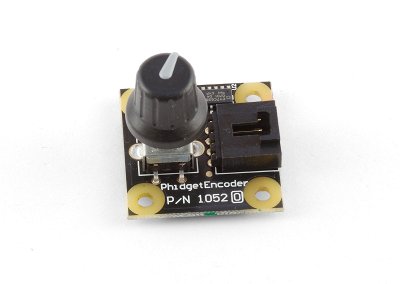
and calculates a virtual axis output-value out of the rotational position:
import joysticks, phidgets

encoder = phidgets.get(82141)
axis = phidgets.encoder2axis(encoder, 2) # 2 revolutions = range of axis

vjoy = joysticks.get('vJoy Device')
vjoy.setAxis(0, axis) # set first axis (x) of virtual joystick
This works great for any simulator that understands joysticks (of course) but has no support for phidgets (usually).
This example also uses VJoy's output capabilities. It reads a physical joystick axis

and translates it into buttons 3 & 4, which for example can be mapped in Falcon BMS, unlike an explicit axis, for gear operations:
import joysticks

saitek = joysticks.get('Saitek Pro Flight Quadrant')
vjoy = joysticks.get('vJoy Device')

vjoy.setButton(4, saitek.getAxis(2) > 0) # gear up
vjoy.setButton(5, saitek.getAxis(2) < 0) # gear down
This example again reads from a phidget encoder (see above) but translates ticks rotated in counter/clockwise direction into radio frequency increments:
import phidgets, fsx

encoder = phidgets.get(82141)
delta = phidgets.encoder2delta(encoder)
for i in range(0,abs(delta)):
    fsx.send("COM_RADIO_WHOLE_INC" if delta>0 else "COM_RADIO_WHOLE_DEC")
The FSX event IDs are straight out of the Sim Connect documentation and are transmit automatically.
This example is about reading a variable value from FSX through Sim Connect. All the detail of the protocol are handled:
import fsx
handle = fsx.get("GEAR HANDLE POSITION", "Bool")
freq = fsx.get("COM ACTIVE FREQUENCY:1","Frequency BCD16", fsx.bcd2khz)
Note how the FSX module knows how to receive variable values, the FSX variable names are straight out of the Sim Connect Aircraft Landing Gear Data documentation and Sim Connect Aircraft Avionics Data documentation. Note that units (2nd parameter) are important and have to be as documented. The FSX module comes with converters for common FSX units like BCD16 (0x2115 for 121.15khz).
Maybe you have some functionality that only kicks in when the ILS is active or when on the ground. This snippet shows how to access Falcon shared memory variables (see here for a list of available variables from Falcon's FLIGHTDATA structure)
import falcon
altitudeInFeet = -falcon.flightData().z